Manage Catalogs
The Catalogs contain libraries, data models, model versions, and templates. A catalog is similar to a directory structure. Catalog Management displays a hierarchical tree of Mart and lets you manage and compare your catalogs. It has all the features included in the Library Manager and Session Manager modules that were available in previous erwin Data Modeler Workgroup Edition releases.
To access the Catalog page, on the menu, click  (Catalogs).
The Catalogs page appears.
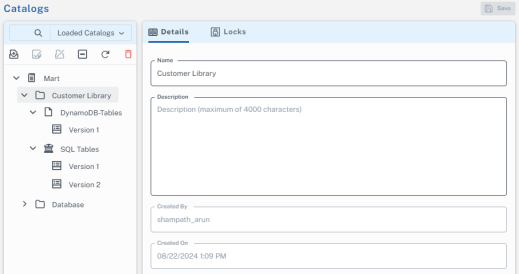
In the above screenshot, the left-side pane displays catalogs and models available in the mart. The type of catalog item is indicated by specific icons. Refer to the following table for catalog tree icons and their descriptions:
|
Icon |
Description |
|---|---|
|
|
Indicates Mart root |
|
|
Indicates Mart Catalog or Folder |
|
|
Indicates Mart model |
|
|
Indicates that the model is harvested to erwin ER360 |
|
|
Indicates that the model is harvested to erwin ER360 but has newer updates that are not harvested. |
|
|
Indicates an erwin DM project saved to mart. |
|
|
Indicates that the model was marked as a template while saving it to the Mart. |


The right-side pane displays details of the selected catalog and locked models.
To manage and understand how to use catalogs, refer to the following:
Libraries
The libraries are catalogs containing models and versions in a tree structure. The catalog entries are sorted in the following order: Libraries, Models, Templates, and Versions respectively. In a catalog, the libraries and models within the libraries are sorted alphabetically. Versions are sorted from newest to oldest; Named Versions appear first, and then Delta Versions follow. The libraries are available on the left-side catalogs pane.
Use libraries to group related models. Libraries add an extra level of security or isolate implementation differences, such as development and production environments. A library can be part of another library or can be present under the Mart.
Context Menu
The context menu appears when you select a catalog entry and right-click. You can use the context menu to cut, copy, paste, and delete a library, model, or template. You can also use the context menu to mark a Delta version and delete, hide, and unhide Named and Delta versions.
You can create, search, delete, copy, and move catalog entries; you can hide and unhide versions.
Search Models
You can search for available models and libraries on the erwin Mart Portal.
Click  and type to search for a model. You can choose the following options to load the models:
- Loaded Catalogs
-
Searches only within catalogs that are loaded from the Mart. This increases the performance of erwin Mart Portal and fetches search results quickly.
- All Catalogs
-
Loads all the available catalogs in the erwin Mart Portal and searches for catalogs and models.
In addition to the above functions, you can also use these catalog management options:
 Creating Library
To create a Library, follow these steps:
-
Go to Application Menu > Catalogs.
The Catalogs page appears.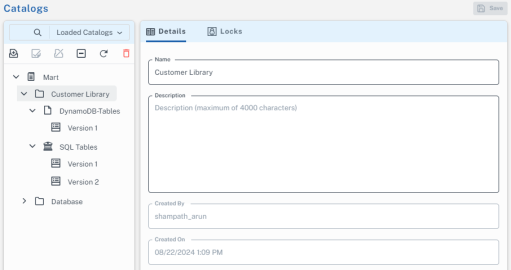
- In the Catalog pane, click
 (Create Library).
A library is added to the catalog tree. - Select the newly created library to edit them in the Details tab.
- Edit the Name and Description.
In Name field, `(backtick), ~(tilde), @(at the rate), %(percentage), ^(carat), ()(brackets), -(hypen), _(underscore), +(plus), =(equal to), |(pipe), {}(flower bracket), [](square bracket), :(colon), ;(semi colon), .(dot) and ,(comma) are allowed.
- Click Save.
Deleting Library
To delete a library, follow these steps:
- Select a library and click
 from the Catalogs pane. The following dialog opens to confirm the deletion of a library and all its models.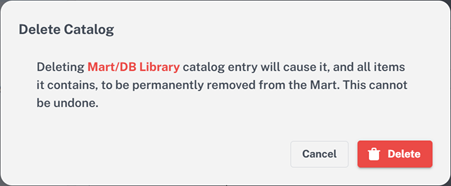
- Click Delete to delete the library along with all the models under it.
On the contrary, when a harvested library is selected for deletion, the following Delete Catalog dialog appears.
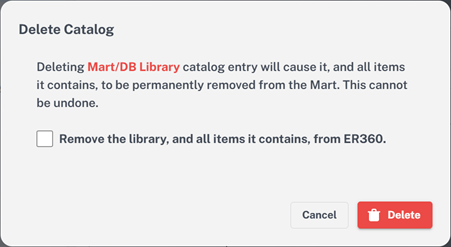
The dialog displays the name of the catalog name along with a checkbox to confirm whether you want to delete the library and all its items from erwin ER360, provided erwin ER360 is initialized.
The deletion of harvested libraries and models depends on the following conditions:
- If the checkbox is selected, the library and all its models also get deleted in erwin ER360, irrespective of their path and names.
- If the checkbox is not selected, both the library and the model get deleted in erwin Mart Portal but only the models get deleted in erwin ER360.
- Deletion of libraries and/or models does not require a harvest job in erwin Mart Portal to reflect the deleted items in erwin ER360 as the deletion happens in real time.
Creating Named Versions
To create a Named version, follow these steps:
- Select either a Named version or a Delta version of a data model and click
 (Mark Version).
A Named version is created.
- In the Catalog Details pane, edit the Name and Description.
- Click Save.
The name and description of the Named version is updated.
Hiding Model Versions
To hide a model version, select a version from the Catalog pane, and click  (Hide Version).
The hidden versions for models are indicated by  as displayed in the screenshot below.
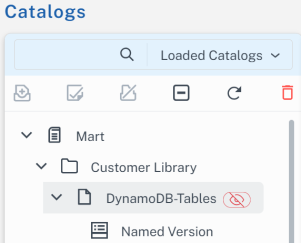
To unhide a model version, follow these steps:
- Select the model of that version, and go to the Hidden Versions tab.
The Hidden Versions tab appears only when the model of hidden version is selected. - On the Hidden Versions tab, select a version.
This enables the Unhide option.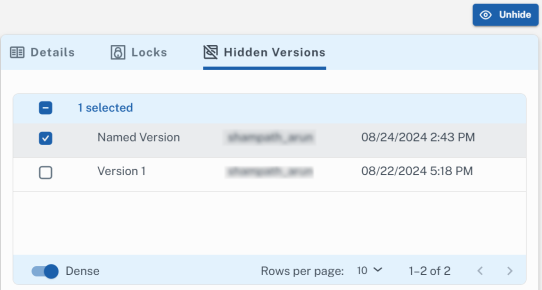
- Click Unhide.
Comparing Models Versions
You can compare the DDL of two model versions committed to a source control repository.
The models and versions that you can compare are indicated by a DDL label next to them. When you select models or versions with a DDL label, the View DDL tabs appear.
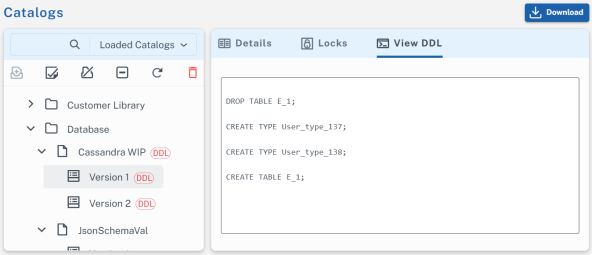
To compare two model versions, follow these steps:
-
Select and right-click the version of a model to which you want to compare another file and click Select Left File.
-
Select and right-click another version of the same model and click Compare to <Version x>.
The Compare DDL tab appears.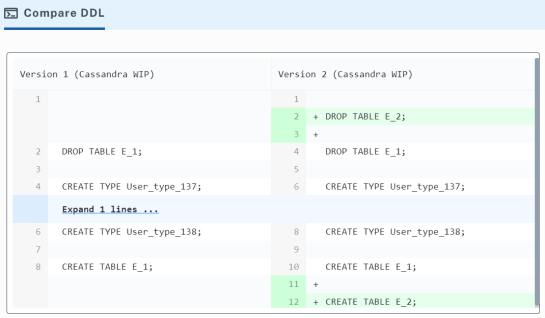
Ensure that selected DDL versions are committed to your source control repository.
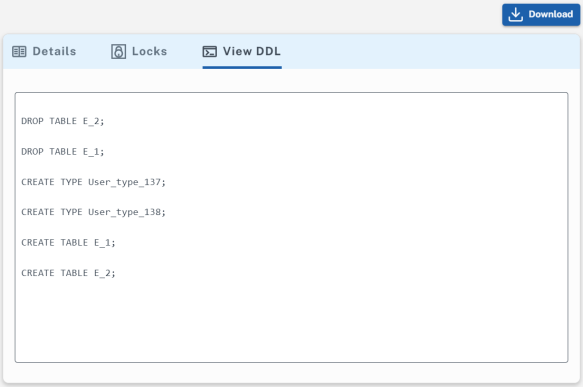
To view DDL of a model version, select a version. Click Download to download the DDL file.