Lock Catalogs
You can lock any catalog, even mart, to restrict other users from editing it and unlock them later. You can view the current lock status of a catalog entry in the Locks tab. Locks last until the duration of a session or until removed. Locks can last even after a session is disconnected; it means that the user is disconnected from Mart but the lock is still preserved. You can work offline on a model without losing the lock. Only the Administrator can override any lock.
To lock a catalogs, models, or versions, follow these steps:
- In the catalog pane, click Locks.
The Locks tab appears.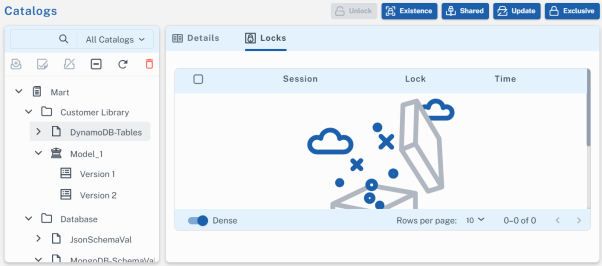
- Select a model, catalog, or version on the Catalog pane. Then, use the following lock options:
- Existence Lock
Prevents other users from deleting a catalog. When you have an Existence lock, other users can read and update, but not delete the catalog. You can edit or move the catalog but cannot delete it. The presence of an Existence Lock prevents anyone, other than the lock owner, from acquiring an Exclusive Lock on the entry. You can apply Existence Lock, Shared Lock, or Update Lock, with the existing Existence Lock, to the catalog.
- Shared Lock
Prevents other users from editing the catalog. When a you have a Shared lock, other users can read, but cannot update or delete the catalog. You can open a model with Shared Lock in read-only mode; you cannot edit the model. The presence of a Shared Lock prevents anyone from acquiring Update Lock or an Exclusive Lock on the asset. You can apply Existence Lock with Shared Lock to a catalog and assets.
- Update Lock
Lets only the lock holder to edit the catalog. When you have an Update lock, other users cannot read, update, or delete the catalog. The presence of Update Lock on a catalog prevents other users from acquiring any other locks, except Existence Lock.
- Exclusive Lock
Lets only the lock holder to edit a catalog. When you have an Exclusive lock, other users cannot read, update, or delete the catalog. In addition, no other user can add any type of lock on the catalog and assets.
- Unlock
Lets only the lock holder to unlock an entry.
Depending on the type of lock, you can move any assets in the catalog. Acquire Update Lock on a catalog entry before you move them.
You cannot move or copy a catalog assets if any of the following conditions is true:
- The asset has any lock other than Existence Lock or Shared Lock
- The parent of that asset has any lock, other than Existence Lock
- The destination library or mart has any lock, other than Existence Lock
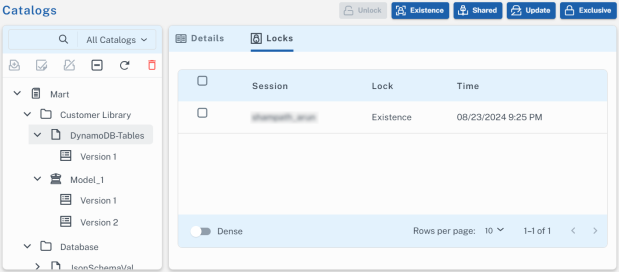
Once the locks are applied, the locked assets are displayed under the Locks tab.
Unlock a Catalog
To unlock catalogs, models, or versions, follow these steps:
- In the catalog pane, click Locks.
- On the Catalog pane, select an asset.
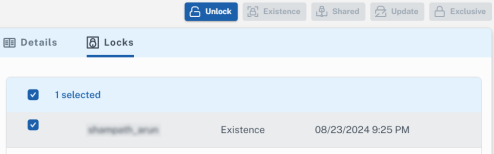
The Locks tab displays the locked assets. - On the Locks tab, select an asset and click Unlock.
The Unlock options is only available when a locked asset is selected.