Once you have added NSM files to the NSM File Management repository, you can use them on models in your mart library.
To apply NSM files, follow these steps:
- In the NSM Files pane, select an NSM file.
NSM file opens in the glossary manager tab.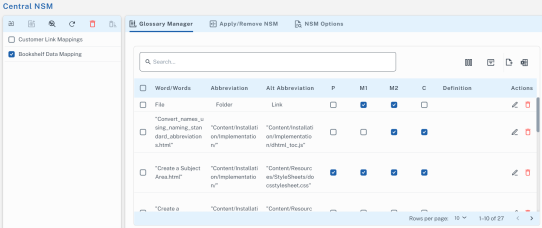
- Click Apply/Remove NSM tab.
A list of all the catalogs and models available in the mart is displayed.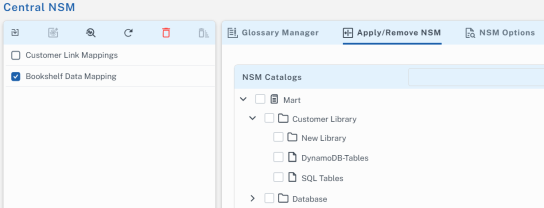
- Select models to which you want to apply the NSM File.
If you select a folder, all the models in the folder are selected. You cannot unselect a few models under the folder then. If you want to select only a few models under a folder, select them individually.
- Click Save.
The NSM file is applied to the selected models and a success message is displayed. You can view a report of all the models to which an NSM file is applied.
- When you apply an NSM file to a model, it is applied at the model-level. Therefore, it is applied to all versions of the model.
- Once an NSM file is applied to a mart model, you cannot detach it.
NSM Options
You can update the NSM options to the models and this change will reflect in the erwin DM.
To apply NSM options, follow these steps:
- Select a file, then navigate to NSM Options tab.
NSM Options tab opens.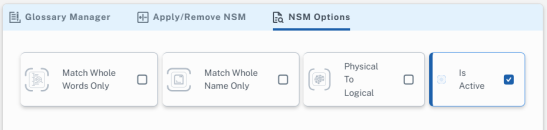
- On the NSM Options tab, use the following options:
- Match Whole Word Only
Specifies whether to substitute glossary abbreviation on whole words only or to include parts of words or substrings. Select the check box to substitute glossary abbreviation on whole words only. Clear the check box to substitute glossary abbreviation for complete words, as well as on parts of words or substrings.
- Match Whole Name Only
Specifies whether to substitute glossary abbreviation on whole name only. Select the checkbox to substitute glossary abbreviation on whole name only and to ignore parts of words and substrings. For example, a glossary abbreviation, Customer Name is substituted with its abbreviation only when the whole name is found. The parts of words or substrings, Customer and Name are ignored.
- Physical To Logical
Specifies whether the changes made to the Naming Standard in the Physical mode should be preserved and reflected in the Logical mode.
- Is Active
Specifies whether to apply a NSM to a model.
- Click Save.
The NSM options are updated.
|
Copyright © 2025 Quest Software, Inc. |