Several additions and enhancements have been implemented to improve erwin Data Modeler's (DM) productivity and usage experience. These enhancements are:
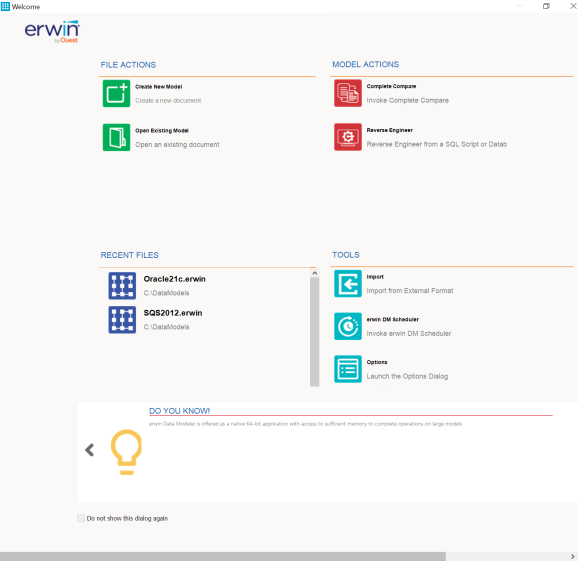
Welcome Page
The Welcome page is a starter page that helps new users to get started with erwin DM. It appears when you launch erwin DM and is also accessible via Help > Welcome. It contains shortcuts to key actions that are performed frequently, such as opening models or creating new ones, running reverse engineering or complete compare wizards, and connecting to the Mart. Apart from these, the Welcome page provides access to recently used files, erwin DM Tools, Technical Support, and Help links.
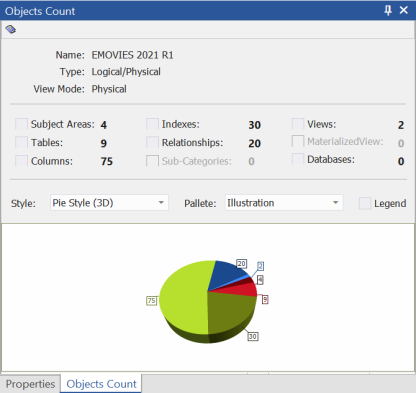
Objects Count Pane
As data models become complex and large, it becomes necessary to get a snapshot of the objects within models. To facilitate this, erwin DM now includes an Objects Count pane. This pane displays information about a selected model and a count of all the objects present in it. Also, it displays a snapshot of this information in the pictorial format, which you can customize using the Style and Pallete options. By default, this pane opens on the right-side of the application. You can also access it via View > Panes > Objects Count Pane.
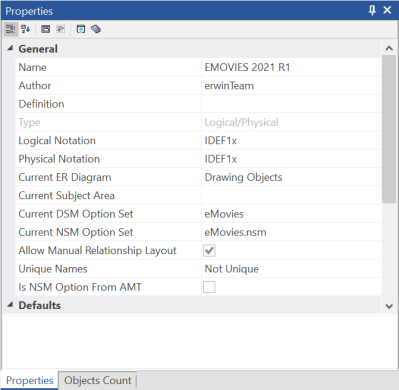
Properties Pane
While working on data models, accessing the property editors to view or edit the model and its object's properties can get tedious and slow you down. To address this, erwin DM now includes a Properties pane. This pane enables you to view and edit the selected object's properties along with the model diagram, side-by-side. By default, this pane opens on the right-side of the application. You can also access it via View > Panes > Properties Pane on the ribbon.
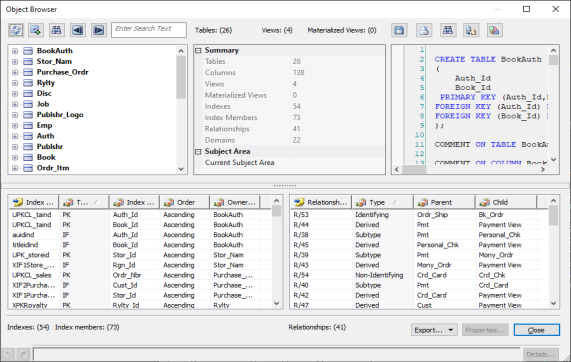
Object Browser
The Object Browser is a one-stop location where you can view tables, views, materialized views, indexes, relationships, and the complete model's or specific table's DDL. You can export this information as a report in CSV, HTML, or PDF formats. To access the Object Browser, on the Properties pane, click  or on the ribbon, click Tools > Object Browser. For more information, refer to the Object Browser topic.
Normalization and Denormalization
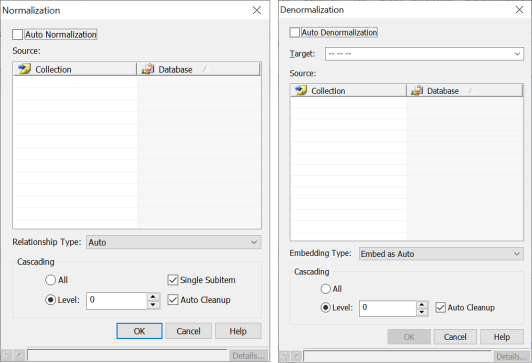
The Normalization and Denormalization features enable you to define relationships in a NoSQL model. Normalization splits the fields in a collection into multiple collections based on the selected relationship type. Whereas Denormalization embeds multiple collections into a single collection based on the selected embedding type. To access these features, on the ribbon, click Actions. Then, click Normalization or Denormalization. For more information, refer to the Defining Relationships Using Embedding Method topic.
Reverse Engineering and Forward Engineering Wizard Redesign
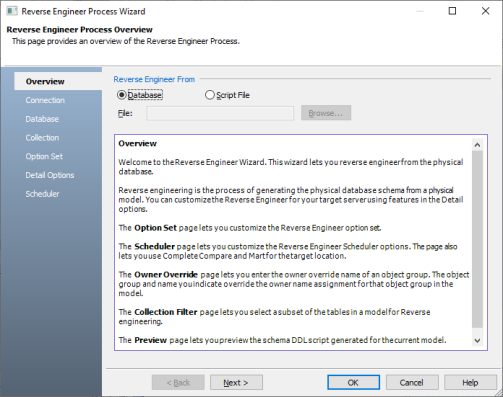
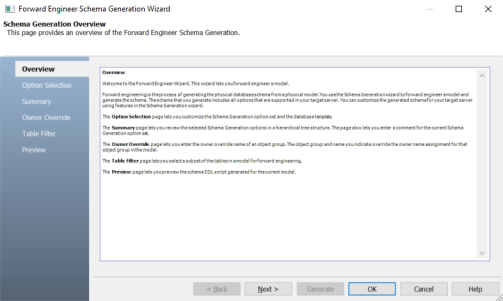
The Reverse Engineering and Forward Engineering wizards have been redesigned for better arrangement of properties and ease of use. For more information, refer to the Reverse Engineering and Forward Engineering topics.
Improved Speed Mode
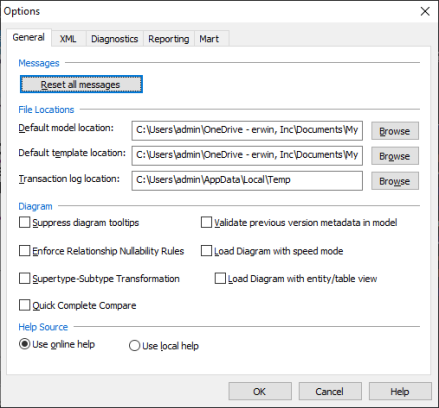
The Load Diagram with speed mode option now provides another option, Load Diagram with entity/table view. This option improves the model load performance in case of large models significantly. It does so by rendering the model in the simplest way possible, with only the entities or tables, and their relationships. Also, by default, it disables the PK-FK highlight feature (Display Diagram Highlight option on Model Editor).
This option is available on Tools > Options dialog box.
|
Copyright © 2021 Quest Software Inc. All rights reserved. All trademarks, trade names, service marks, and logos referenced herein belong to their respective companies. |