You can add database models into the project by reverse engineering an existing database or a script.
To add a model into the project by reverse engineering, follow these steps:
- Right-click the folder to which the model must be added and select Reverse Engineer.
The New Model window appears.
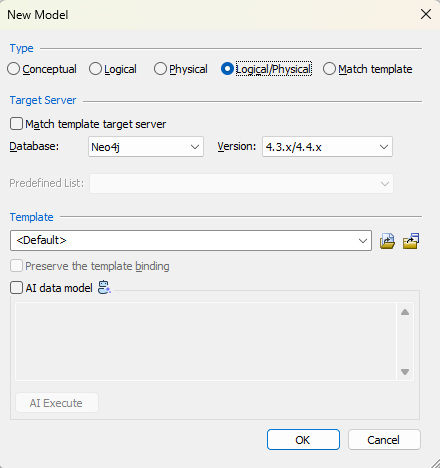
The Conceptual model and AI data model features are available starting erwin DM 15.2.
- Select the model type.
- Select the required database and version and click Next.
- Enter appropriate values in the Overview, Connection, Databases, Collections, Option Set, Detailed Options, and Scheduler tabs. For more information, refer to the Select the Reverse Engineering Options topic.
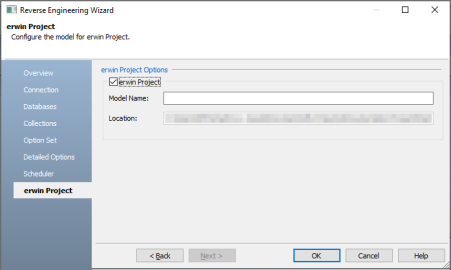
- Select the erwin Project tab in the Reverse Engineering Wizard.
- Enter appropriate values in the fields. Refer to the following table for field descriptions.
- Click OK.
The Reverse Engineering Wizard appears.
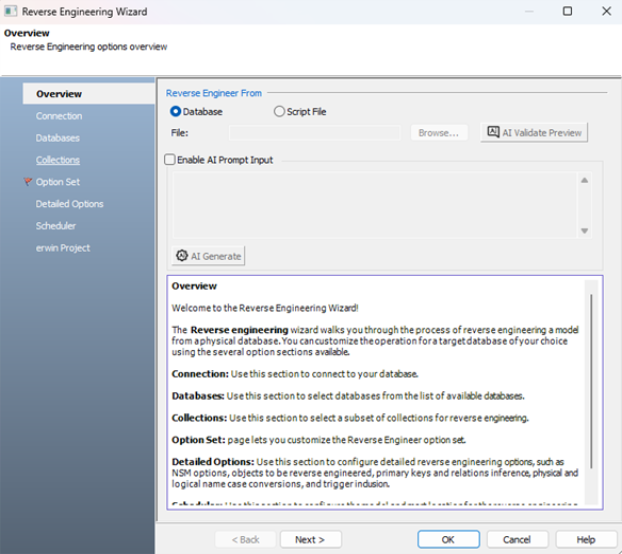
The erwin Project Options section appears.
| Field | Description |
|---|---|
| erwin Project | Specifies whether the model must be added to the project |
| Model Name | Specifies a name for the model |
| Location | Specifies the storage location of the model. This field is auto-populated. |
The model is added to the selected folder, and opens in the Diagram window.