Create and Manage Mappings
After associating glossaries to catalogs, you can map business terms in the glossaries to objects available in the catalogs.
To create mappings, follow these steps:
-
Go to Application Menu > Enterprise Glossary.
The Enterprise Glossary page appears.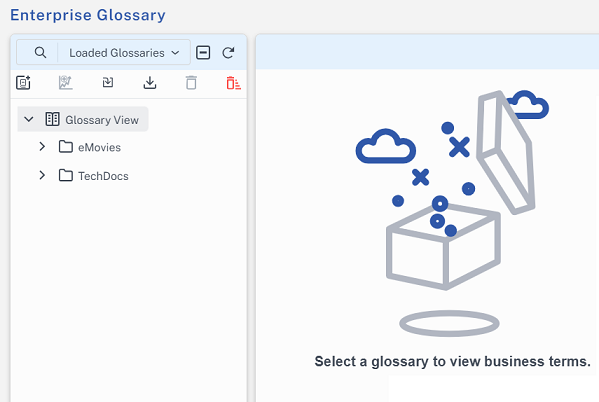
-
Select a glossary.
-
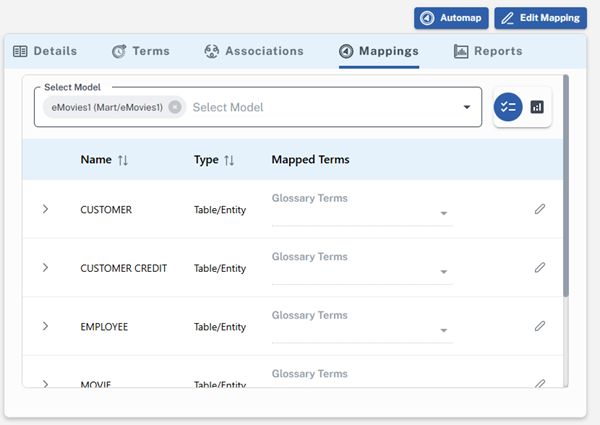
On the Mappings tab, select a model to which you want to map business terms.
Model properties section appears.
-
Click
 to map one model object at a time or click Edit Mapping to enable editing for all objects in the selected model.
 -
For each model object, click the Glossary Terms arrow and select one or more business terms.

-
Click Save or click
 .
.Business terms are mapped to the selected objects.
To automatically map business terms to the catalog, click Automap. You can click  to check the status of the glossary automapping request and click
  to go back to the Mappings list.

The Automap feature maps business terms to the catalog using name-based matching and semantic similarity, where semantic mapping is powered by AI.
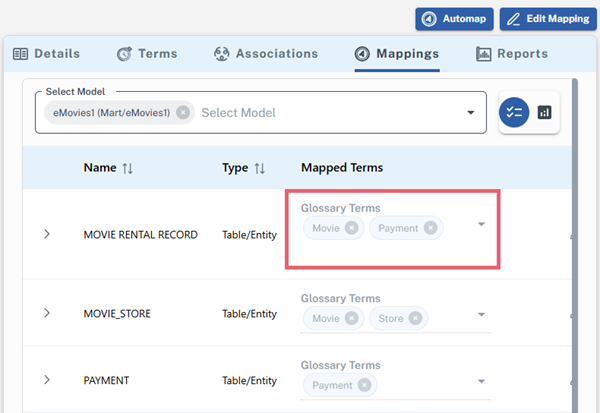
For example, in the following image, the table/entity Movie Rental Record is mapped to the term Movie based on name matching and to the term Payment based on semantic similarity.