erwin Mart Portal has undergone the following enhancements:
Enterprise Glossary
Several enhancements have been implemented for Enterprise Glossary:
-
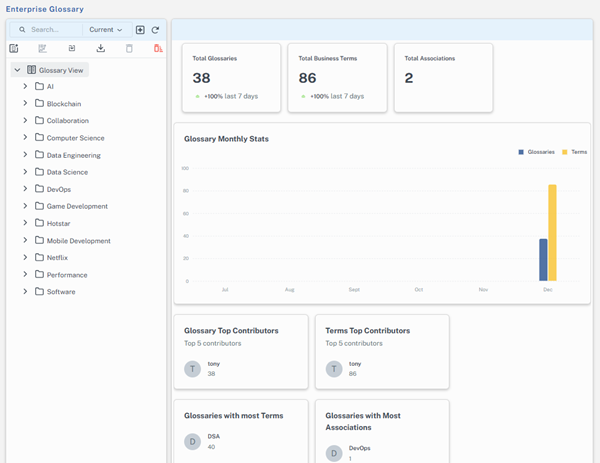
Dashboard for Glossary View: Enterprise glossary now has a dashboard that displays insights on usage trends and key performance indicators. This dashboard is available at the Glossary View node. It shows metrics such as the Total Glossaries, Glossaries with Most Associations, and Glossary Monthly Stats.
-
Toolbar with erwin AI and Formatting Features: You have a new toolbar that includes text formatting options and erwin AI for generating and updating business term descriptions and definitions.
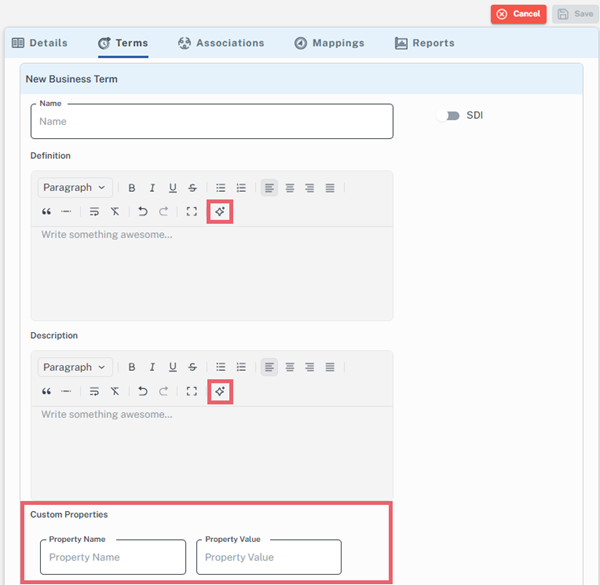
To enable the erwin AI feature, configure your license with AI credentials in the erwin Mart Portal. For more information, refer to the AI-Powered Data Modeling topic.
-
New Custom Properties Fields: You can now add custom properties to business terms. Two new fields are available for this:
-
Property Name: Specifies the user-defined property name.
-
Property Value: Specify the value associated with the property name. This value provides additional details or context for the business term.
For example, the property name can be Payment Type, and the property value can be UPI or Credit Card. You can add multiple properties to business terms. Additional fields appear as you enter values in the existing ones.
-
-
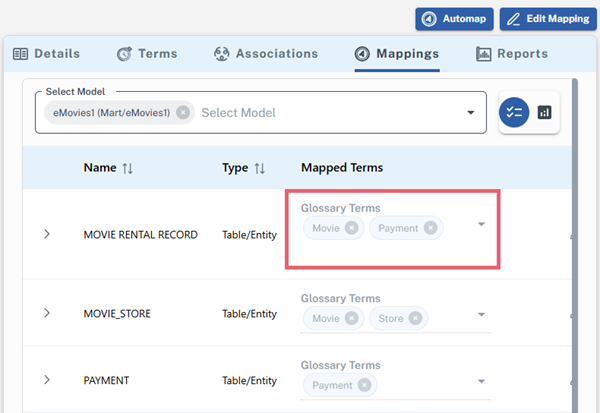
Semantic Mapping using AI: The Automap feature now supports AI-powered semantic mapping in addition to existing name-based matching. This update improves mapping precision and reduces manual effort. For example, in the following image, the table/entity Movie Rental Record is mapped to the term Movie based on name matching and to the term Payment based on semantic similarity.
Real-Time Library and Model Deletion
When a library is harvested in erwin ER360 and is selected for deletion in erwin Mart Portal, it gets deleted from both (erwin Mart Portal and erwin ER360) in real time. Also, when a library containing models is selected for deletion , the models get deleted irrespective of the fact whether it is harvested or not. Let us discuss in detail to understand the scenarios better.
To delete a library, follow these steps:
- Select a library and click
 from the left pane. The following dialog opens to confirm the deletion of a library and all its models.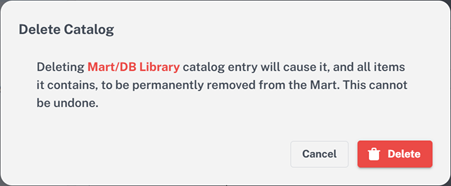
- Click Delete to delete the library along with all the models under it.
On the contrary, when a harvested library is selected for deletion, the following Delete Catalog dialog appears with the name of the catalog name along with a checkbox to confirm whether you want to delete the library and all its items from erwin ER360, provided erwin ER360 is initialized.
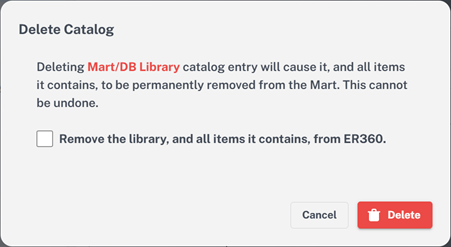
The deletion of harvested libraries and models depends on the following conditions:
- If the checkbox is selected, the library and all its models also get deleted in erwin ER360, irrespective of their path and names.
- If the checkbox is not selected, both the library and the model get deleted in erwin Mart Portal but only the models get deleted in erwin ER360.
- Deletion of libraries and/or models does not require a harvest job in erwin Mart Portal to reflect the deleted items in erwin ER360 as the deletion happens in real time.