To be able to generate REST reports for catalogs, ensure that you have the View permissions to the Browse Metadata module and a bearer token. You can generate REST Reports via API.
To generate REST reports via API, follow these steps:
-
Generate the access token from erwin ER360 via the Access Token feature and copy the generated token.
The generated access token can be used to authenticate requests to the erwin ER360 REST API services. It allows you to download catalog reports provided you have the view permission for Browse Metadata.
-
Use a REST API application, such as Postman or Swagger, to enable the API endpoint.
-
Enter your erwin ER360 catalog URL (https://<yourServerName>/MartER360/service/portal/repository/catalogs) in the REST API application to get the catalog reports.
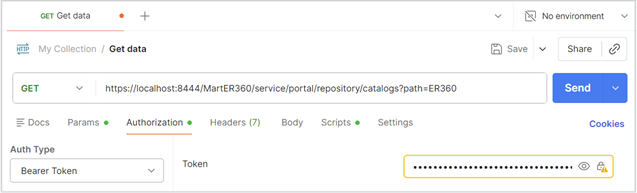
For example, use Postman application to use the API endpoint and enter the following erwin ER360 catalog URL in the Get data field:
https://localhost:8444/MartER360/service/portal/repository/catalogs -
On the Authorization tab, select the Auth Type as Bearer Token and paste the access token copied from erwin ER360 in the Token field.
-
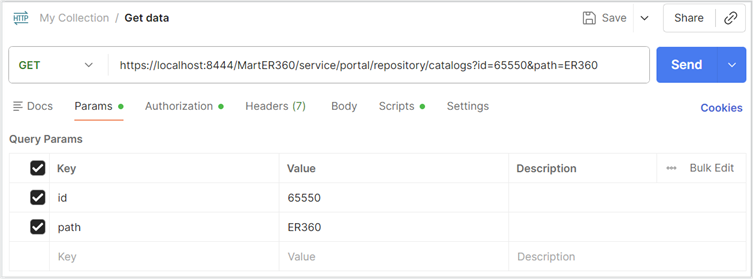
On the Params tab, add your Query Params to get the reports. Here, the end point takes the following parameters:
- id: Catalog ID for which you want to generate the report
- path: Catalog path for which you want to generate the report
-
Click Send.
This generates the requested report for the valid ID or path in the pane below.
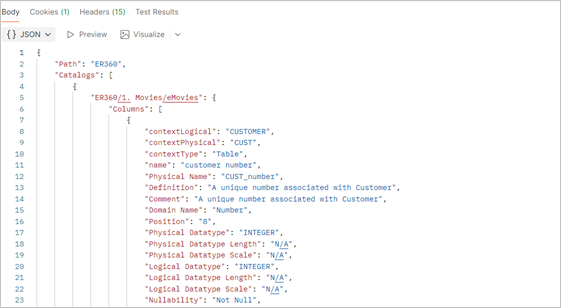
You can then save the generated report.
Report generation depends on the parameters you enter in the Query Params section:
- If you use erwin ER360 ID or path, then all the models nested under erwin ER360 are added to the report.
- If you use both ID and path, then the ID takes precedence and path parameter is ignored.
- If you enter an invalid ID or path, then no report is generated.