Reviewing and updating data product models
Updated  Sunday, May 03, 2026
The following steps walk you through reviewing and updating Data Product models.
To review and update a model:
-
Do one of the following:
-
In the left navigation bar, click Product, and then select Review and Update Data Products.
-
On the Home page, on the Automated Data Product Factory card, click Get started.
The Review Data Product page appears.
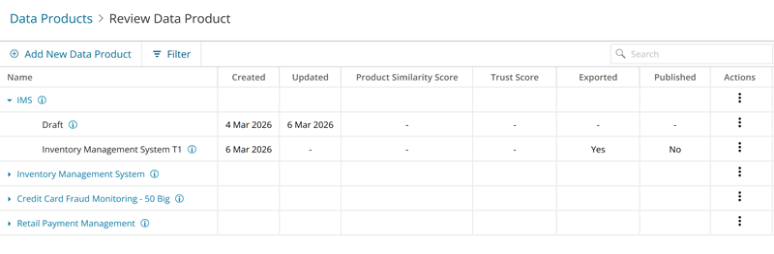
From here, you can edit the data product details and version details, and open the Data Product workspace to update the data product model.
Expand existing data products to view both draft and saved versions.
-
-
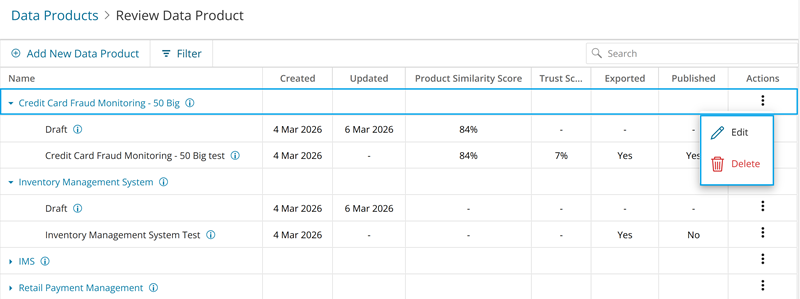
Click the three-dot menu in the Actions column and then choose your preferred option.
-
To edit data product details, click the three-dot menu in the Actions column corresponding to that, and then work with following options:
-
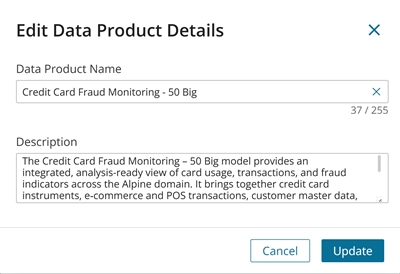
Edit: Opens the Edit Data Product Details dialog. Make the required changes and click Update.
-
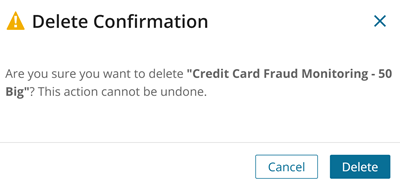
Delete: Opens the Delete Confirmation dialog, click Delete to confirm.
-
-
To edit the Draft version, click the three-dot menu in the Actions column corresponding to that, and then click Edit Data Product.
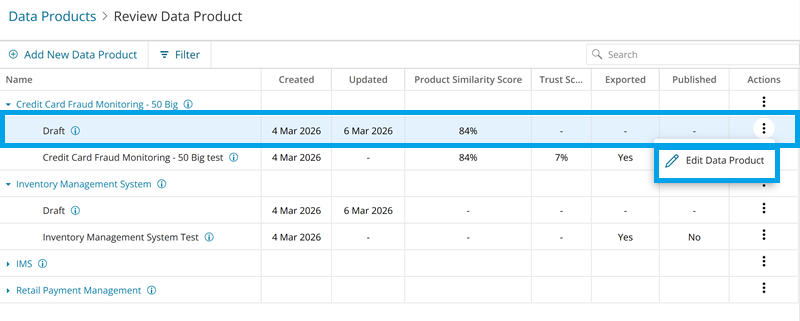
The Data Product workspace appears. Go to step 3.
-
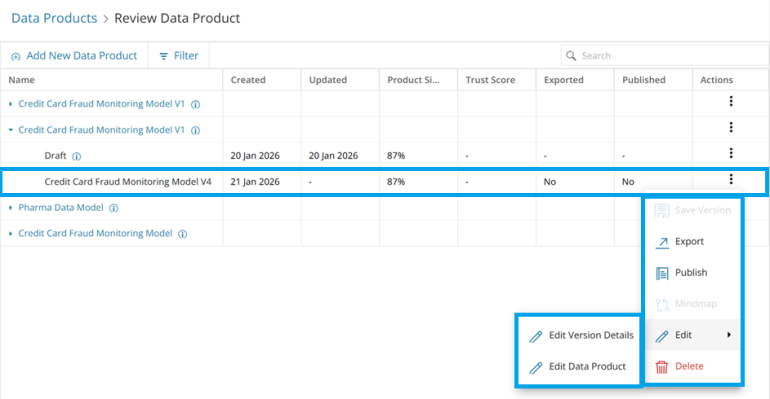
To edit a saved version, click the three-dot menu in the Actions column corresponding to that, and then work with following options:
-
Save Version: Saves the selected version.
-
Export: Exports the selected version to erwin Mart Portal on cloud.
-
Publish: Publishes the Data Product model to Data Marketplace.
-
Mindmap: Displays the mindmap for the Data Product model that was created in Data Marketplace and pulled back to Automated Data Product Factory.
-
Edit: Displays following options:
-
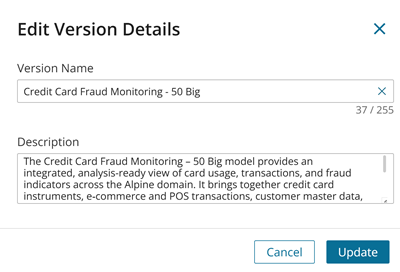
Edit Version Details: Opens the Edit Version Details dialog. Make the required changes and click Update.
-
Edit Data Product: Opens the Data Product Details workspace. Go to step 3 to update.
-
-
Delete: Opens Delete Confirmation dialog, click Delete.
-

NOTE: The Publish button becomes active after all entity matches are loaded. After you publish the model, the Mindmap option becomes available. The mindmap is generated in the Data Marketplace and then pulled into Automated Data Product Factory.
-
-
Enter your prompt for update. For example,
Add an entity for compliance.
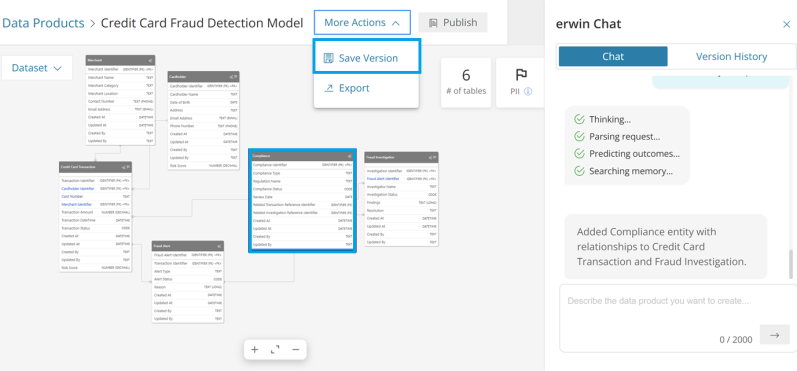
The Compliance entity is added. You can save the version.