Scanning Metadata
After creating system and environment, the next logical step is to scan source/target metadata. You can also import metadata from MS Excel file, JSON, CSV (Flat File), XMI, MS Access File, and XSD.
To scan source or target metadata, follow these steps:
- Go to Application Menu > Data Catalog > Metadata Manager.
- Under the System Catalogue pane, expand the system created by you.
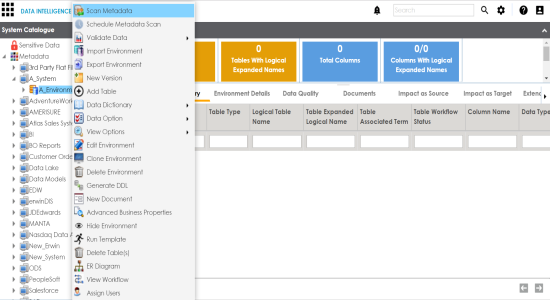
- Right-click the Environment node created by you.
- Click Scan Metadata.
- Select appropriate Import Metadata Options by selecting
 or
or  .
. - Select the appropriate Database Schema check box.
- Click
 to move to next step.
 - Select the objects to be imported by selecting the appropriate check box.
- Click
 .
.
Metadata Scan-Step 1 wizard appears.
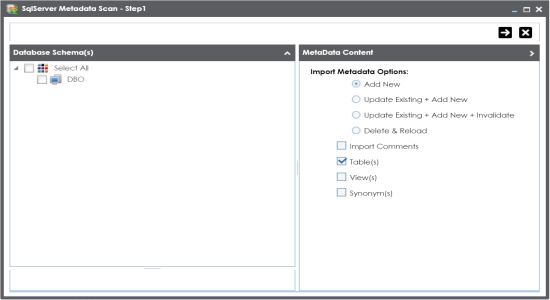
Note: If you are scanning the metadata for the first time, then select Add New.
|
Import Metadata Options |
Description |
|---|---|
|
Add New |
This option adds new objects to the existing object list. Existing metadata is not refreshed. |
|
Update Existing + Add New |
This option adds new objects to the existing list and at the same time the existing metadata is also refreshed. |
|
Update Existing + Add New + Invalidate |
This option adds new objects to the existing list, refreshes existing and invalidate table/column during the scanning process. |
|
Delete & Reload |
This option deletes all existing metadata and scans only the new objects that have been selected. |
|
Import Comments |
Select the check box to import comments. |
|
Table(s) |
Select the check box to import Tables. |
|
View(s) |
Select the check box to import Views. |
|
Synonym(s) |
Select the check box to import Synonyms. |
Metadata Scan Step-2 Wizard appears. It pulls up the objects selected in Metadata Scan Step-1 like Tables, Views and Synonyms.
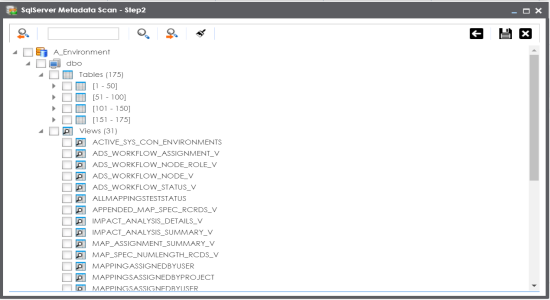
The metadata is scanned successfully and saved under the environment node.
For more information on managing metadata, refer to the Managing Metadata section.
You can also import metadata from:
|
Copyright © 2020 erwin, Inc.
All rights reserved.
|
|