Managing Users involves:
- Editing or deleting Users
- Monitoring User Account Activities
- Viewing User Assignments
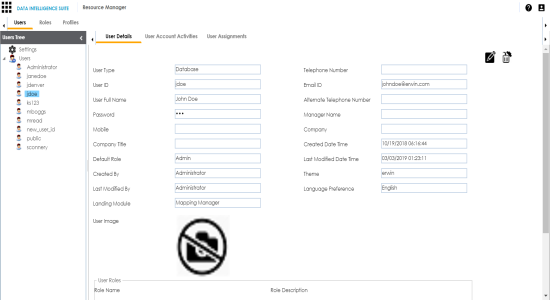
To manage Users, follow these steps:
- Go to the Users Tree pane and select the desired user.
- Use the following options:
- Edit User (
 )
)- You can modify the user details as per your requirements and assign new roles to the user.
- Note: You cannot edit the User Type, User ID and the Default Role.
- Delete User (
 )
)- You can delete a user that is no longer required.
- Edit User (
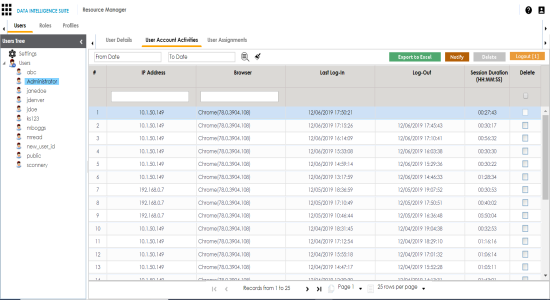
- To monitor user account activities, click the User Account Activities tab, and select the desired user from the Users Tree pane.
- Use the following options:
- Export to Excel
- To save the selected user's account activities in .xls format, click Export to Excel.
- Notify
- To send an email notification to the selected user, click Notify.
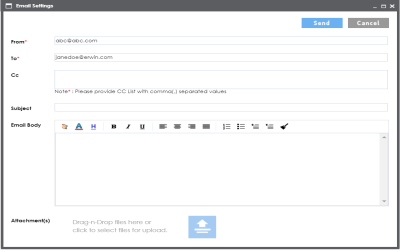
Use the following options:- From: Enter the email ID from which you want to send the email notification. By default, email ID of the logged in user appears which can be edited.
- To: Enter the email ID to which you want to send the email notification. By default, the email ID of the selected user appears which can be edited.
- CC: You can add CC list of other recipients.
- Subject: Add a subject to the email.
- Email Body: Write the content of the email here.
- Attachments: Use (
 ) or drag and drop files as attachments to the email.
- Send: To send the email, click Send.
- Logout
- To log out the selected user, click Logout.
- Note: If the selected user is logged in then the Logout button appears like Logout[1].
- User Account Activities during a Period
- From Date and To Date
- You can monitor the selected user's account activities during a period of your choice. To define the period, click in the boxes and use the respective calendars.
- Search (
 )
)- To search the user account activity based on the From Date and To Date, click (
).- Clear Search(
 )
)- To clear the search results, click (
). - To view user assignments, click the User Assignments tab and then select the desired user from the Users tree pane.
- The User Activity Report of the selected user is displayed.
|
Copyright © 2020 erwin, Inc.
All rights reserved.
|
|