Creating Systems
You can harvest (scan) metadata from data sources in the Metadata Manager. The scanned
metadata is stored in a hierarchical manner (System > Environment > Table > Column) in
the System Catalogue. To store the scanned metadata, you need to create a system.
A System is the highest node in the System Catalogue and it can contain multiple environments.
In a typical data integration project a system can be a source or target type.
You can create a system and specify data steward, system owner, and its business purpose etc.
To create systems, follow these steps:
- Go to Application Menu > Data Catalog > Metadata Manager.
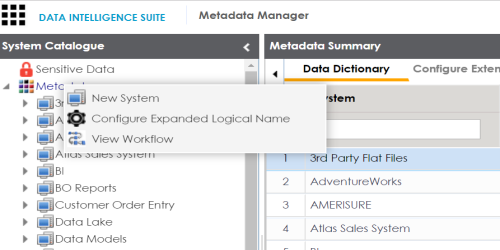
- Under the System Catalogue pane, right-click the Metadata node.
- Click New System.
- Enter appropriate values in the fields. Fields marked with a red asterisk are mandatory. Refer to the following table for field descriptions.
-
Source
-
Target
-
Both
- Click Miscellaneous and enter appropriate values in the fields. Fields marked with a red asterisk are mandatory. Refer to the following table for field descriptions.
- Click Save and Exit.
The New System page appears.
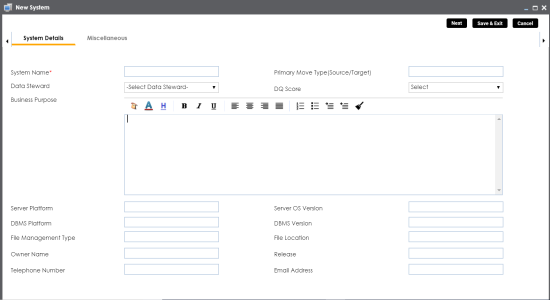
|
Field Name |
Description |
|---|---|
|
System Name |
Specifies the physical name of the system. For example, Enterprise Data Warehouse. For more information on naming conventions, refer to the Best Practices section. |
|
Data Steward |
Specifies the name of the data steward responsible for the system. For example, Jane Doe. For more information on configuring list of data stewards, refer to the Configuring Data Stewards topic. |
|
Business Purpose |
Specifies the business objective of the system. For example: This is a source system to store Sales metadata of the organization for a data integration project. |
|
Server Platform |
Specifies the server platform of the system. For example, Windows. |
|
DBMS Platform |
Specifies the DBMS platform of the system (if the system is an RDBMS source). For example, SQL Server. |
|
File Management Type |
Specifies the file management system (if the system is a file-based source). For example, MS Excel. |
|
Owner Name |
Specifies the full name of the system owner. For example, Talon Smith. |
|
Telephone Number |
Specifies the telephone number of the system owner. For example, 1-800-783-7946. |
|
Primary Move Type (Source/Target) |
Specifies whether the system is source, target, or both. Valid values are: |
|
DQ Score |
Specifies the overall data quality score of the system. For example, High (7-8). For more information on configuring DQ scores, refer to the Configuring Data Profiling and DQ Scores topic. |
|
Server OS version |
Specifies the OS version of the system's server. For example, Windows Server 2012 R2. |
|
DBMS Version |
Specifies the DBMS version of the system (if the system is an RDBMS source). For example, SQL Server 2017. |
|
File Location |
Specifies a file path (if the system is a file-based source). For example, C:\Users\Talon Smith\erwin\Mike - Target System |
|
Release |
Specifies the system release including the point release number. For example, Oracle 18c. |
|
Email Address |
Specifies the system owner's email address. For example, talon.smith@mauris.edu |
|
Field Name |
Description |
|---|---|
|
ESB Platform Type |
Specifies the enterprise platform bus type (if the system is an ESB source). For example, Mule. |
|
ESB Q Manager Name |
Specifies the ESB queue manager's name of the system (if the source is an ESB). For example, John Doe. |
|
Total DBSize |
Specifies the total physical size of the database. For example, 198 GB. |
|
Total Number of Tables |
Specifies the total number of tables associated with the system. For example, 300. |
|
Definition of the day |
Specifies the definition of the system at the end of the day. For example: Extraction of details from the source system is complete. |
|
Batch Extract Window |
Specifies the daily batch extract window of the system. For example: Batch extract from the source system is scheduled at 3:30 P.M. everyday. |
|
Average User |
Specifies the average number of system users. For example, 30. |
|
Average Concurrent Users |
Specifies the average number of concurrent system users. For example, 15. |
|
Special Instructions |
Specifies any special instructions or comments about the system. For example: The system acts as a source for creating the mapping specification. |
A new system is created and added under the system tree.
Once a system is created, you can create environments and scan metadata from different database types.
You can also manage the system in the following ways:
|
Copyright © 2020 erwin, Inc.
All rights reserved.
|
|