You can configure extended properties at System level for three objects:
- Environments: Extended properties configured at system level for environments are applicable to all the environments under the system.
- Tables : Extended properties configured at system level for tables are applicable to all the tables under the system.
- Columns: Extended properties configured at system level for columns are applicable to all the columns under the system.
To configure extended properties at system level, follow these steps:
- Under the System Catalogue pane, click the desired system and click the Configure Extended Properties tab.
- Field Controls: This pane displays the available UI elements.
- Configure Form: Use this pane to design forms using the available UI elements in the Field Controls pane.
- Properties: This pane displays the properties of the selected UI element in the Configure Form pane.
- Use the following tabs:
- Environment
- Select this tab to configure extended properties for environments under the selected system.
- Table
Select this tab to configure extended properties for tables under the selected system.
- Column
Select this tab to configure extended properties for columns under the selected system.
- Click Edit and double-click or drag and drop the required UI elements from the Field Controls pane to the Configure Form pane.
- Select UI elements, one at a time, and configure their properties in the Properties pane.
- Default connector: It enables you to enter options manually.
- Reference Data Manager : It enables you to pull the data from reference tables in the Reference Data Manager.
- Click Save.
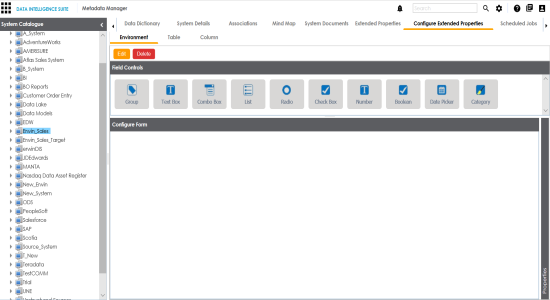
The Configure Extended Properties tab contains the following sections:
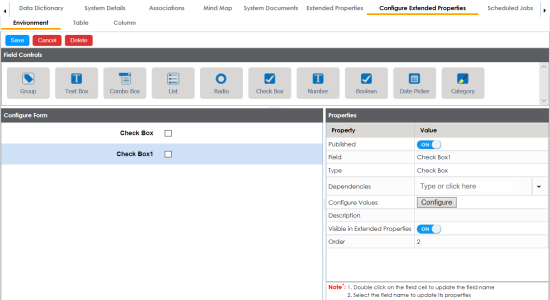
Note: The available properties differ based on the type of UI element.
Refer to the following table for property descriptions:
|
Property |
Description |
|---|---|
|
Published |
Toggle the switch to ON to publish the field. |
|
Field |
Double-click the corresponding Value cell to change the label of the field. |
|
Type |
Double-click the corresponding Value cell to select different types of the field. |
|
Configure Values |
Click Configure Values to enter option values. You can use: |
|
Mandatory |
Select the check box to make the field mandatory in the form. |
|
Description |
Double-click the corresponding Value cell to enter a description of the field. |
|
Visible in Extended Properties |
Toggle the switch to ON to make it visible. |
|
Order |
Displays the order of the field. You can drag and drop the field in the Configure Form pane to change its order. |
The form is saved and it is available under the Extended Properties tab of the selected object (Environment, Table, or Column).
|
Copyright © 2020 erwin, Inc.
All rights reserved.
|
|