Creating One to Many and Many to Many Mapping Specifications
Creating Mapping Specification
To create one to many or many to many mapping specifications, follow these steps:
- Under the Workspace Mappings pane, click the required map.
- In Mapping Specification, click
 .
. - Switch
 to ON to enable the append mode.
 - Drag one or multiple source columns from Metdata Catalogue in Mapping Specification under the Source Columns Name.
- Drag single or multiple target columns from Metadata Catalogue in Mapping Specification under the Target Columns Name.
- Click
 .
.
The append mode enables you to drop multiple columns from Metadata Catalogue in one row of the Mapping Specification grid.
Note: Use Ctrl key to select multiple columns in Metadata Catalogue.

The mapping specification is saved.
You can view the mapping specification in the Graphical Designer tab to view the graphical representation of the many to one mappings.
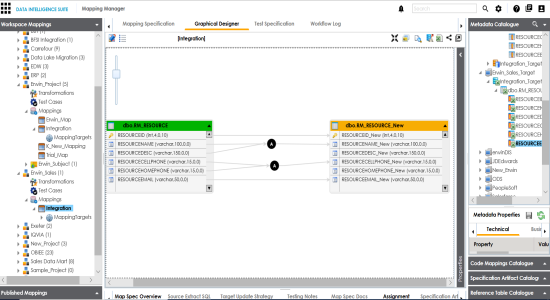
Setting Target Update Strategy
To set target update strategy, follow these steps:
- Expand the Additional Mapping Information pane and click the Target Update Strategy tab.
- In the Target Update Strategy tab, click
 .
. - Click the required strategy, enter Update Strategy Description, and click
 .
. - Click
 .
.
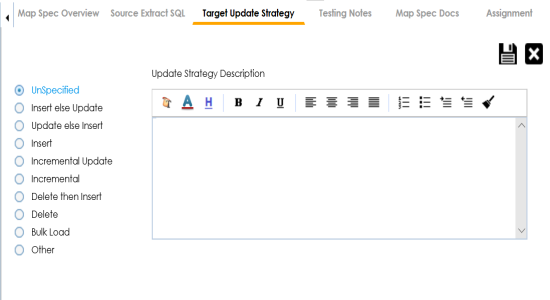
The source to target mapping is saved.
You can enrich a mapping specification by:
- Adding transformation and lookup details
- Associating code cross walks (code mappings)
- Associating reference tables
- Linking requirements
After creating a mapping specification, you can analyze a mapping specification. Analyzing mapping specification involves:
- Generating virtual preview of target
- Previewing Data
- Performing table gap analysis
- Performing column gap analysis
- Running impact analysis
- Running lineage analysis
- Running end to end lineage
- Opening business view
- Viewing mapping statistics
|
Copyright © 2020 erwin, Inc.
All rights reserved.
|
|