Enterprise Tag Groups introduces a structured approach to organizing and governing tags across the platform. It replaces the earlier flat tag model with a group-based tagging framework, enabling better consistency, control, and discoverability of metadata.
Note: The Enterprise Tags module has been renamed to Enterprise Tag Groups in Quest Data Intelligence 16.0, reflecting the enhanced governance and organizational capabilities of this feature.
Previously, all tags existed in an unstructured, flat format, which resulted in:
- Inconsistent tag naming and usage
- Difficulty managing large numbers of tags
- Uncontrolled tag creation by end users
- Limited visibility into tag associations
Tag Groups solve these challenges by organizing tags into logical categories while providing administrators control over tag creation, assignment, and usage across your organization.
Accessing Tag Groups
To access Enterprise Tag Groups, go to Application Menu > Miscellaneous > Enterprise Tag Groups.
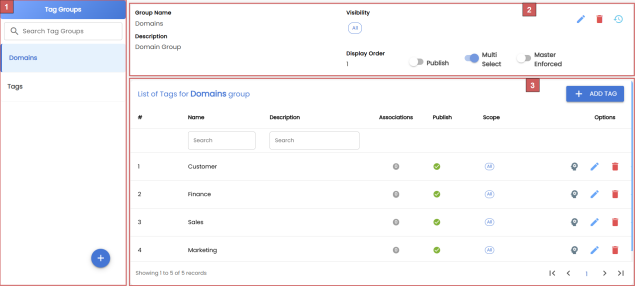
Here's what the Enterprise Tag Groups page looks like:
Tag Group Configuration
The Enterprise Tag Groups page displays all available tag groups and provides options to manage them. The following table describes each section available on the page:
|
UI Section |
Function |
|---|---|
|
1 - Tag Groups Listing and Creation |
Use this section to view a list of all tag groups, search for tag groups, create new tag groups and configure their properties including name, multi-select settings, and visibility options. |
|
2 - Tag Group Management |
Use this section to manage the selected tag group. You can view tag group details, edit configurations, delete tag group, and view its history. This section also displays the publishing status and other metadata for each tag group. |
|
3 - Tags Management Within Group |
Use this section to add, edit, or remove individual tags within a selected tag group. You can also use the Mind map option to organize and view tag relationships. |
Default Tag Groups
Quest Data Intelligence includes two default tag groups:
- Domain - Contains tags that represent business domains such as Customer, Finance, Sales, and Marketing. You can add additional domain tags as needed.
- Tags - Contains all previously created tags. This group provides backward compatibility with existing tag implementations.
Key Capabilities
To manage tag groups effectively, you need to understand these key concepts:
Publishing
Publishing determines whether a tag group is visible and available to other users in your organization.
- Published/Switched On: All users with appropriate permissions can see and use the tag group for tagging assets across all relevant interfaces.
- Draft/Switched Off: The tag group exists but is hidden from other users. Only the creator can view and edit it. Use draft mode to create and test new tag groups before publishing them.
Multi-Select
Multi-Select controls whether users can assign multiple tags from the same tag group to a single asset.
- Switched On: Users can select and assign multiple tags from this group to the same asset.
- Switched Off: Users can select only one tag from this group per asset. Attempting to add a second tag will replace the first one.
Note: The multi-select setting applies to the entire tag group, not to individual tags. All tags within a group follow the same behavior.
Master Enforced
Master Enforced determines whether users can create new tags on-the-fly or must select only from predefined tags in the master tag list.
|
Master Enforced: OFF |
Master Enforced: ON |
|---|---|
|
Users can type any tag name directly into the tagging field |
Users must select from predefined tags in the tag group |
|
New tags are automatically created in the master and assigned to the asset |
Users cannot create new tags |
|
Dropdown list grows dynamically as users create new tags |
Dropdown list remains static, containing only master-defined tags |
|
Useful for flexible, organic tag organization |
Ensures consistency and prevents tag sprawl |
Visibility
Visibility settings control where a tag group appears in the system for tagging assets. You can select one or more visibility options, depending on where you want users to be able to apply tags.
For more information on creating enterprise tags, refer to the Creating Enterprise Tag Groups topic.