After you create and associate policies with your data assets, you can perform several actions to maintain and enforce your data governance rules. The policies tab provides comprehensive tools to monitor, modify, and apply your policies across your data infrastructure.
Managing policies involves:
-
Using AI Explain to understand policies
-
Viewing policy details
-
Editing policies
-
Reviewing policy activity history
-
Enforcing policies on environment
-
Viewing policy relationships in Mind Map
-
Deleting policies
Using AI Explain
The AI Explain feature generates a simplified summary of your policy. This is particularly useful for stakeholders who need to understand the policy's purpose without reviewing the complete technical details.
To understand the complete configuration of a policy, you can view its detailed information.
To generate AI explanation :
-
On the Policies tab, locate the policy to be explained.
-
In the Actions column, click
 .
.The AI Policy Explanation pane opens.
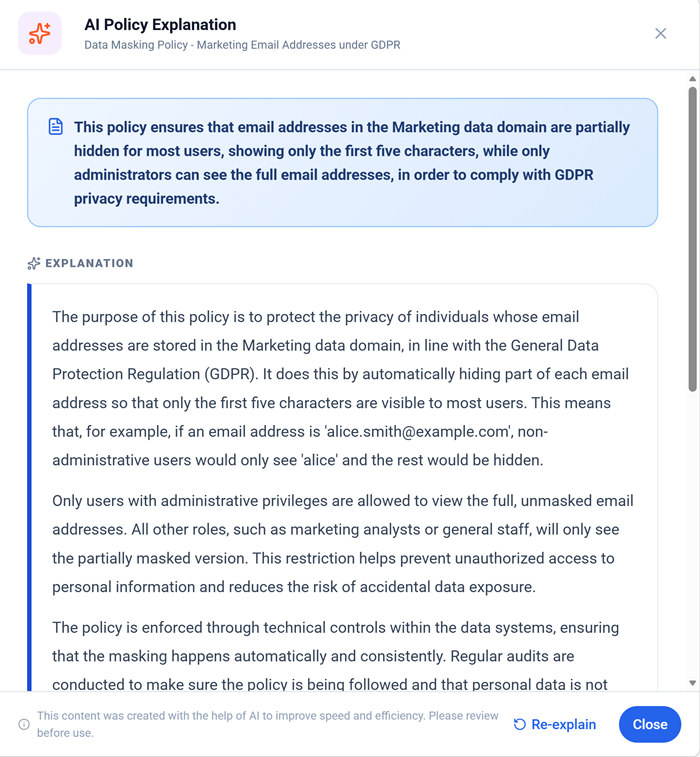
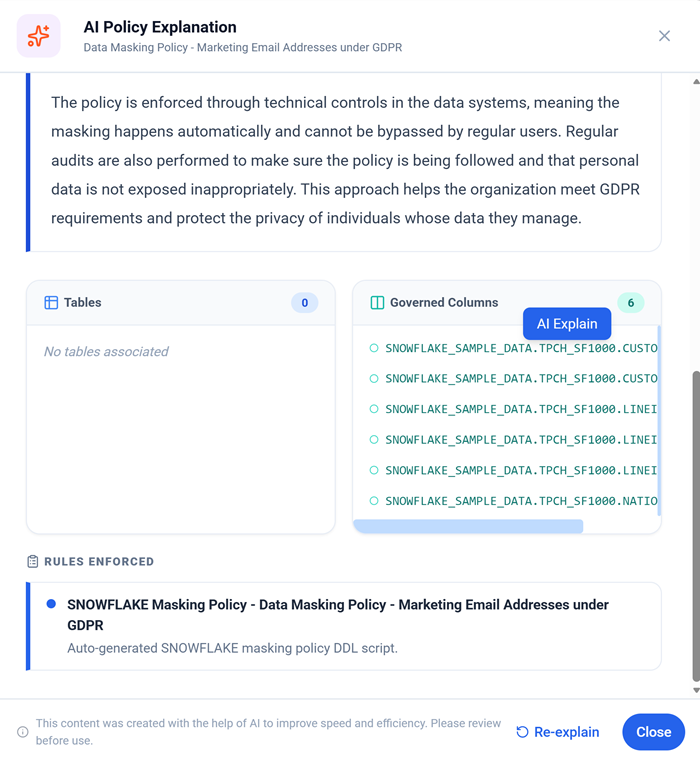
You can use the Re‑explain button to explore the explanation further.
This pane also displays associated Tables, Governed Columns, and Enforced Rules. Scroll down to view them.
Viewing Policy Details
To understand the complete configuration of a policy, you can view its detailed information.
To view policy details:
-
On the Policies tab, locate the policy you want to view.
-
In the Actions column, click
 .
.The Policy pane opens displaying Policy Information.
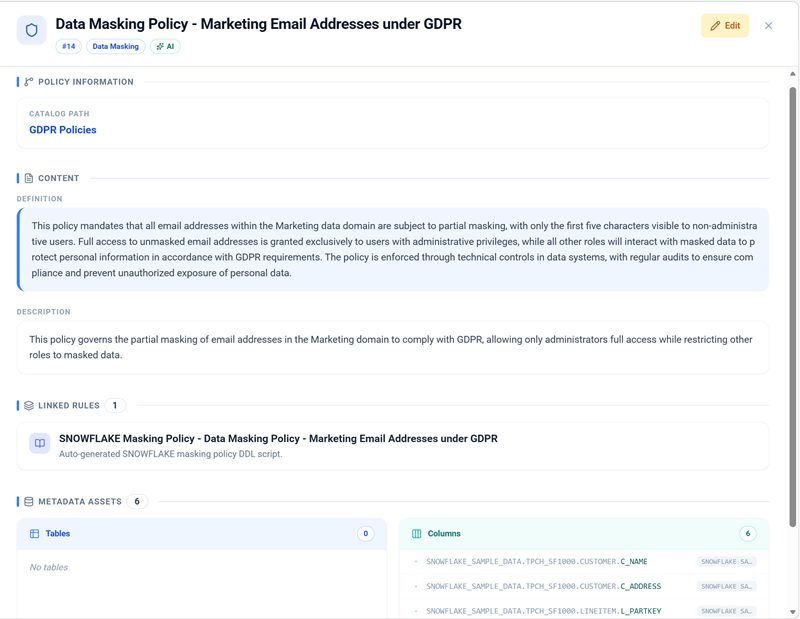
You can also open the Edit Policy Wizard by clicking the Edit button in the top-right corner.
Editing Policies
You can modify an existing policy to update its definition, associated assets, rules, or other configurations.
To edit a policy:
-
On the Policies tab, locate the policy to be explained.
-
In the Actions column, click
 .
.The Edit Policy Wizard opens, displaying the current configuration.
-
Make any necessary changes, such as:
-
Removing existing assets (tables, columns, or data elements)
-
Adding new assets to the policy scope
-
Modifying the policy definition or description
-
Updating associated rules and conditions
-
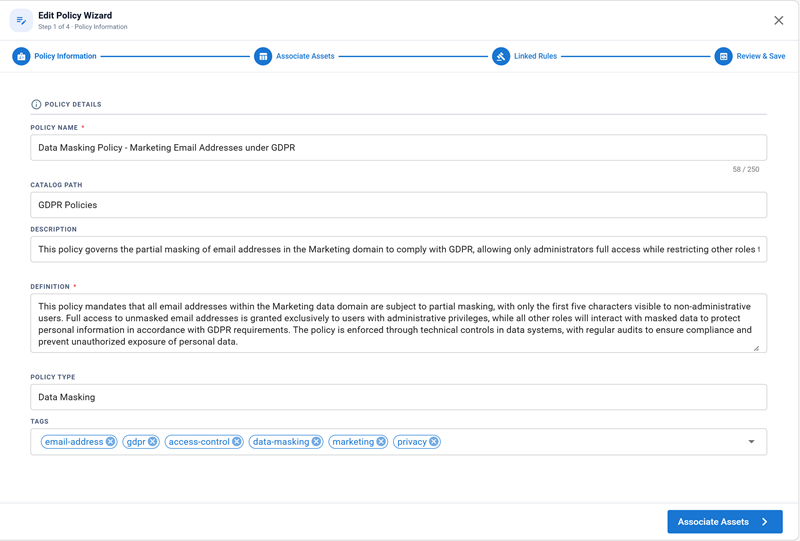
The Edit Policy Wizard takes you through the same policy creation workflow, allowing you to make changes at any stage. For more information, refer to the Creating Policies topic.
Viewing Activity Log
The Activity Log section maintains a comprehensive record of all changes made to a policy. This audit trail enables you to track modifications and understand the policy's evolution over time.
What the Activity Log records:
-
Adding or removing tables and columns
-
Changes to the policy definition or description
-
Modifications to policy rules and conditions
-
All updates and revisions made during policy lifecycle
The Activity Log provides full traceability of your policy management activities, which is essential for compliance and audit purposes.
To view the Activity Log:
-
On the Policies tab, locate the policy for which you want to view the Activity Log.
-
In the Actions column, click
 . The Activity Log opens.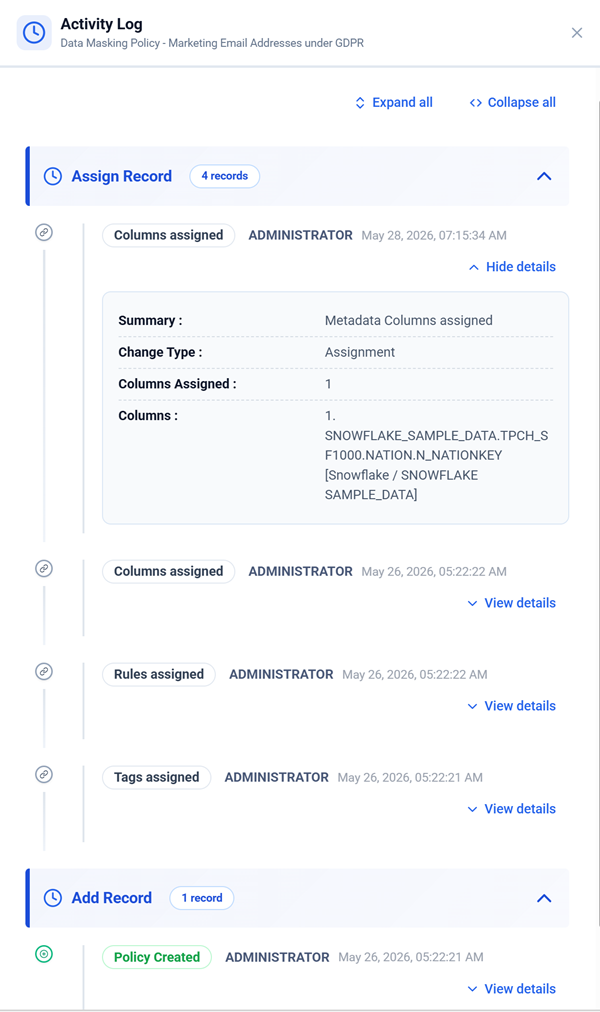
Enforcing Policies
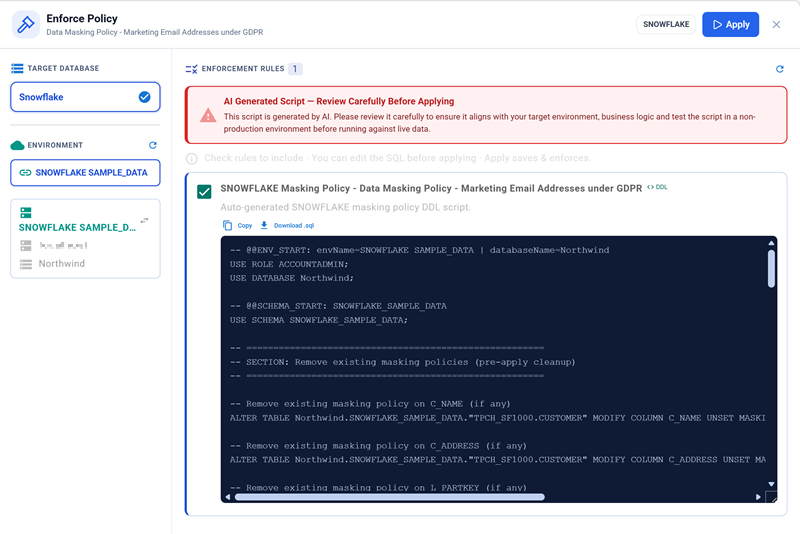
The SQL script generated by AI should be reviewed and tested in a non-production environment before enforcement on production. Ensure you have the required permissions before applying policies to production systems.
Policy enforcement is the final stage in the policy management workflow. During this stage, the SQL queries generated for your policy are applied to your environment through Quest DI.
To enforce a policy:
-
On the Policies tab, locate the policy to be enforced.
-
In the Actions column, click
 .
.The Enforce Policy pane opens.
-
Select the target environment. For example, Snowflake Sample_Data.
-
Click Apply.
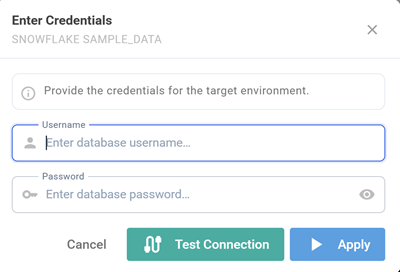
The Enter Credentials dialog appears.
-
Confirm you have the necessary permissions and enter your database credentials.
For more information on connections, refer to the Creating and Managing Environments topic.
-
Click Test Connection.
-
After the connection is verified, click Apply.
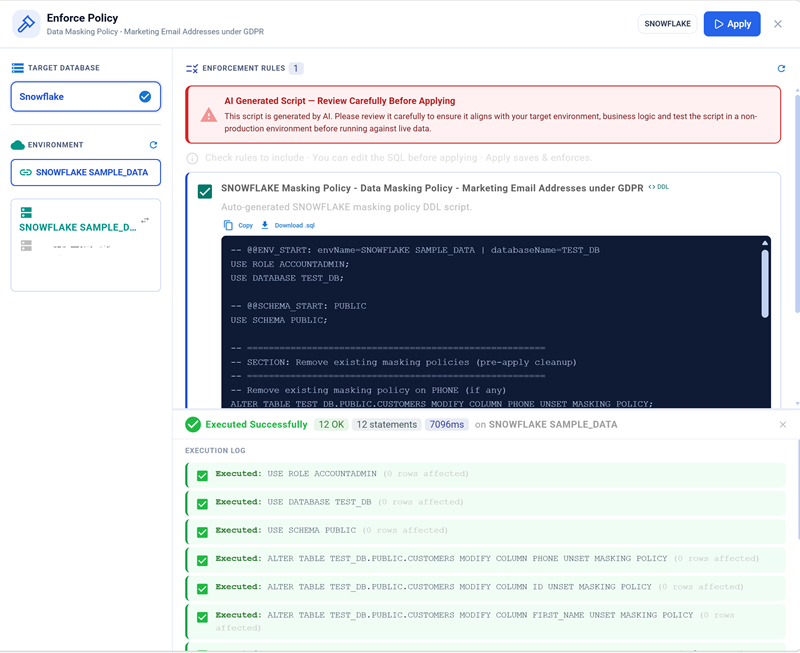
The SQL rules execute on the environment. Data masking takes effect based on the policy rules.
Reviewing Enforcement Results
After policy enforcement, you can review the execution results to identify which rules were successfully applied and which may require attention.
|
Result Status |
Description |
Required Action |
|---|---|---|
| Executed | The SQL query executed successfully and the policy rules were applied |
No action required |
| Error | The SQL query failed to execute. The rule could not be applied to the specified column or data type |
Review the error details and manually refine the query if needed. Execute the corrected query in a subsequent enforcement step. |
Using Mind Maps
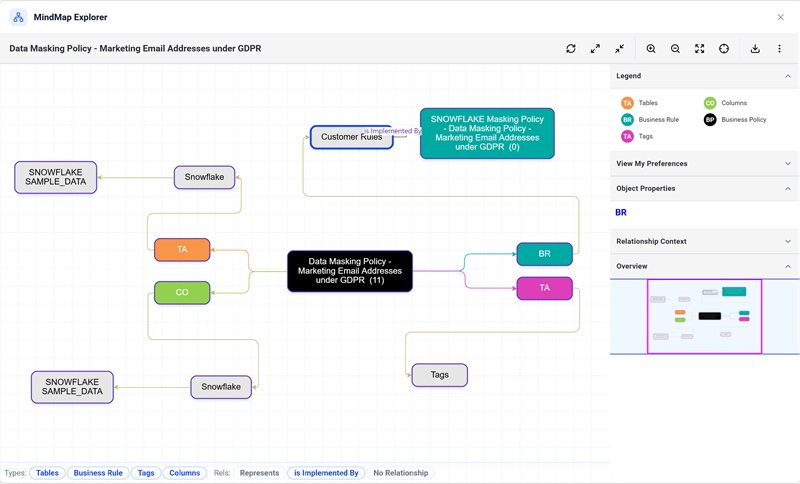
The Mind Map displays all associations and relationships for a policy in a clear, hierarchical view. This helps you understand the complete scope and impact of your policy.
The Mind Map displays:
-
Which environment, tables, and columns the policy is applied to
-
Associated data classifications and tags
-
Linked business policies and data quality rules
-
Complete asset associations for the policy
To view the mind map:
-
On the Policies tab, locate the policy for which you want to view the mind map.
-
In the Actions column, click
 .
.The mind map opens.
Deleting Policies
Deleting a policy is a permanent action. Ensure you no longer need the policy before proceeding.
When a policy is no longer required, you can delete it from the system. Deletion removes the policy along with all its associations and rules.
To delete a policy:
-
On the Policies tab, locate the policy to be deleted.
-
In the Actions column, click
 .
.The Confirm Delete dialog appears.
-
Click Delete.
The policy, its associations with assets, and all associated rules are removed from the system.