When you assign a workflow to a project, the workflow is applicable to all the mappings under the project.
A workflow has different stages and each stage is assigned to different roles. The users with the assigned roles receive the work queue notifications as the object moves across the stages. They can enter relevant comments while moving the object to the next stage.
Executing workflows involves:
- Receiving workflow queue notifications
- Examining and moving the mapping object to the next stage
To execute workflows for the mappings in the Mapping Manager, follow these steps:
- Go to Application Menu > Data Catalog > Mapping Manager.
- Click
 .
. - Click My Workflow Queue.
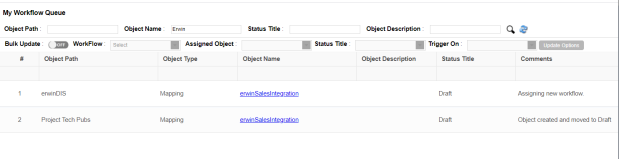
- Search the required object. You can search the object by entering any of the fields namely, Object Path, Object Name, Status Title, and Object Description and clicking
 .
. - Click the <Object_Name> appearing as a hyperlink.
- Click Send To - <Next_Stage> to move the object to the next stage of the workflow.
- Add relevant comments and click Save & Send.
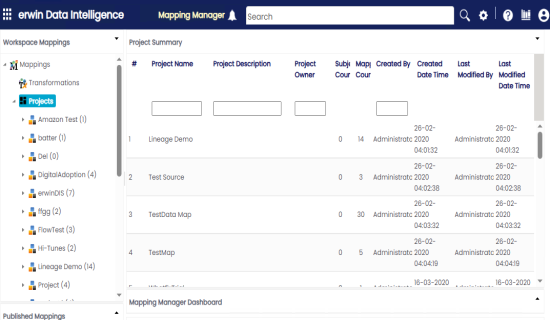
The Mapping Manager page appears.
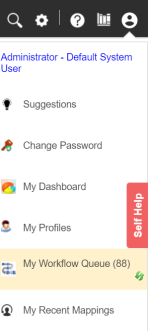
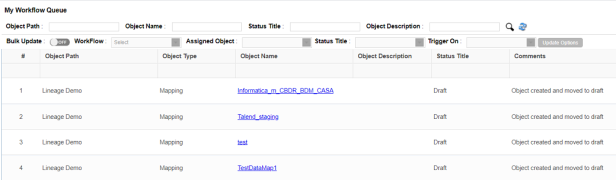
The My Workflow Queue page appears showing workflow queues.
The search results appear.
The Map View page appears.
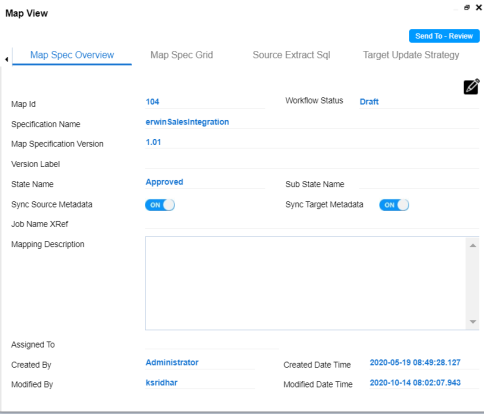
The Workflow Change Description page appears.

The workflow status is updated to the <Title_Status> of next stage and the users with the assigned roles receive the work queue notification.
Each stage in the workflow is assigned to different roles. For example, if the Draft stage in the workflow was assigned to Mapping Admin role then, the users with the Mapping Admin role receive the work queue notification.
The workflow status is updated and can be viewed in the Mapping Manager. For more information on viewing the workflow logs, refer to the Viewing Workflow Log topic.
In the same manner you can move the object to different stages and finally publish the mapping object. Once the mapping is published, it moves into the Published Mappings tab (in Mapping Manager) and a new version of the mapping is created in the Workspace Mappings tab (in the Mapping Manager).