erwinAI Assistant helps you quickly generate and moderate the following attributes for all Business Glossary assets:
-
Definitions
-
Descriptions
-
Notes
-
Tags
-
SDI classifications
You can enter your prompts and generate results. You can evaluate the results and choose to accept or moderate, maintaining a human-in-the-loop workflow.
It is accessible from the following modules:
-
Business Glossary Manager
-
Discover Assets
-
Metadata Manager
-
Data Marketplace
erwinAI Assistant is available starting with version 15.2.
What You Can Do
-
Search for business glossary assets with missing attributes.
-
Generate missing attributes: descriptions, definitions, notes, tags, and SDI classifications.
-
Review and update AI-generated content for selected attributes.
-
Accept moderated content.
Ensure that your administrator has enabled erwinAI for you.
Generating and Moderating an Attribute
To update an attribute of business assets, such as business terms, follow these steps:
-
Go to one of the following dashboards:
-
Discover Assets
-
Metadata Manager
-
Data Literacy > Business Glossary Manager
-
Data Literacy > Data Marketplace
-
-
In the lower-right corner, click
 .
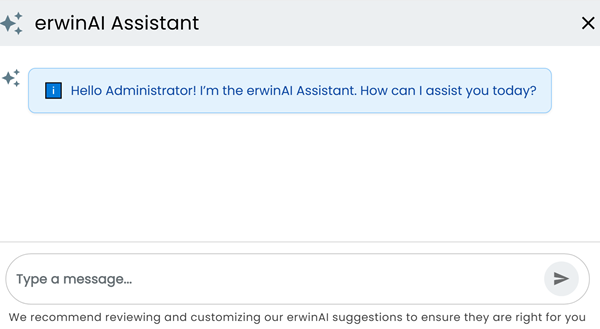
. The erwinAI Assistant opens.
-
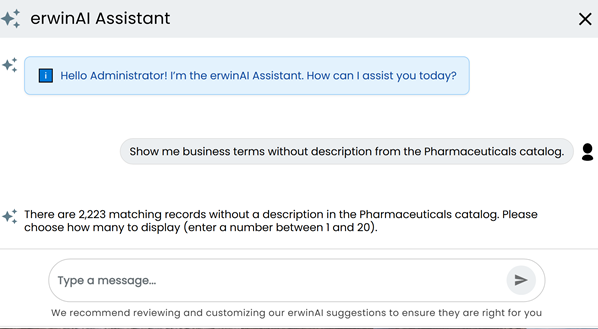
Enter your custom prompt. For example,
Show me business terms without description from the Pharmaceuticals catalog.
The Assistant displays the total number of matching records.
- Enter a number from 1 to 20 to specify how many business terms to display. For example,
6
For the first 6 business terms, the following columns are displayed: Catalog, Catalog Path, and Description (blank).
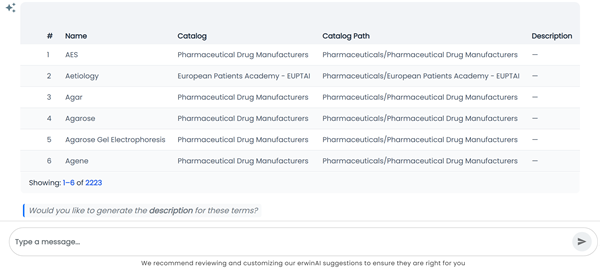
The Assistant prompts: Would you like to generate the description for these terms?
-
Enter your prompt. For example,
Yes
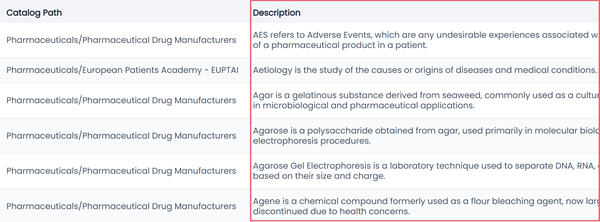
Descriptions are generated for all 6 business terms.
-
Hover over the upper-left corner of the table. Then, do one of the following:
-
To accept the descriptions, follow these steps:
-
Click Accept (
 ).
).Check boxes appear in each row.
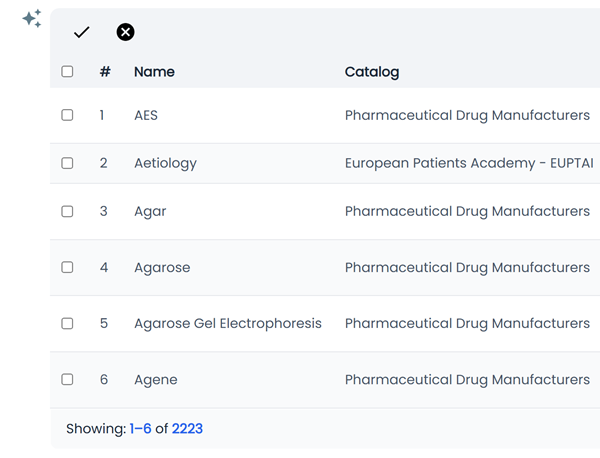
-
Select the business terms for which you want to accept the descriptions, and then click
 .
.The Assistant generates an execution summary of the accepted business terms.
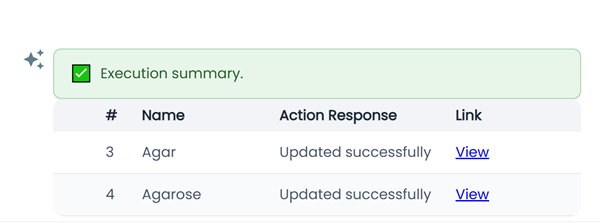
-
-
To review the descriptions before finalizing, follow these steps:
-
Click Moderate (
 ).
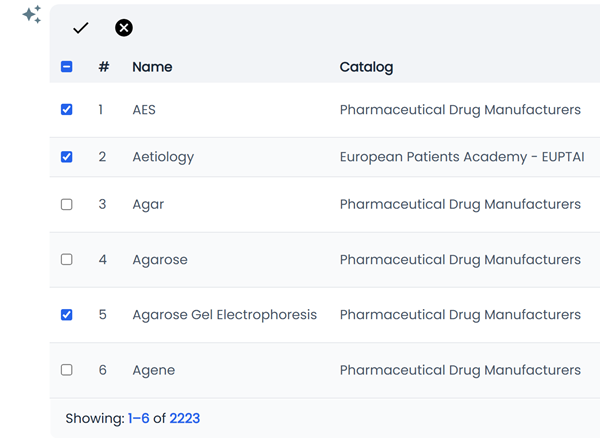
).Check boxes appear in each row.
-
Select the business terms for which you want to update the descriptions, and then click
.
The Edit Business Term page opens, and the selected business terms appear in the left pane.
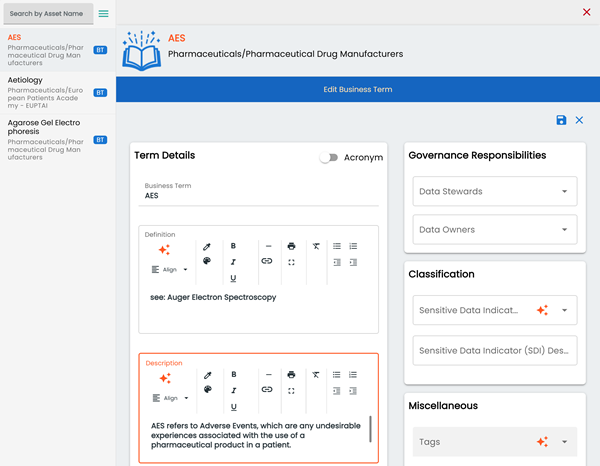
-
Select a term and update the description. Then, click Save.
The updated business term disappears from the list on the left. The page refreshes and displays the next business term for editing.
-
Repeat step 3 until all business terms are updated. Once you finish updating all descriptions, you return to the erwinAI Assistant.
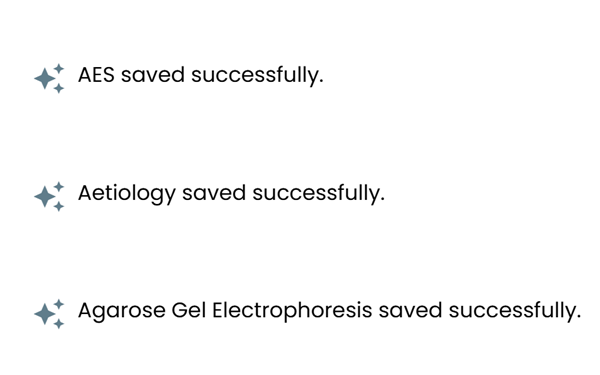
After this you can accept the descriptions as shown above.
All selected business terms have updated descriptions, and the Execution summary appears in erwinAI Assistant. You can click View to open the corresponding business term page.
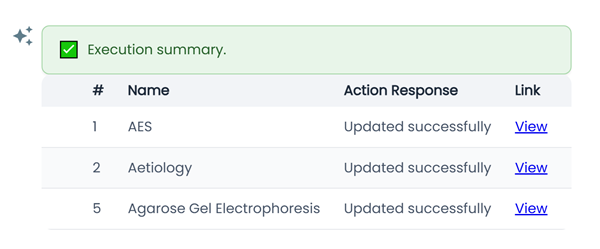
Similarly, you can update other business assets.
-
Generating and Moderating Multiple Attributes
You can also update two or more attributes at the same time. To make review easier, update only one or two attributes at a time.
For example, following steps demonstrate updating SDI classifications and notes for the business terms.
-
Enter your custom prompt to update SDI classifications and notes. For example,
Show first 5 business terms without SDI classifications and Notes of the Pharmaceuticals catalog.
The business terms without SDI classification and notes are displayed.
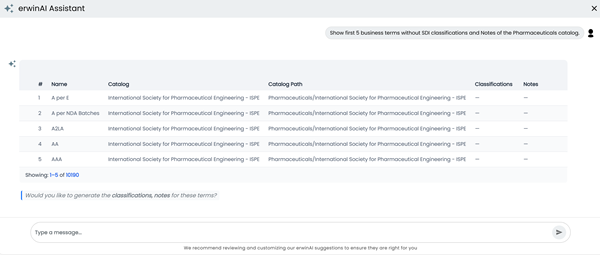
-
Enter a prompt to generate SDI classifications and Notes. For example,
Yes
The classifications and notes are generated.
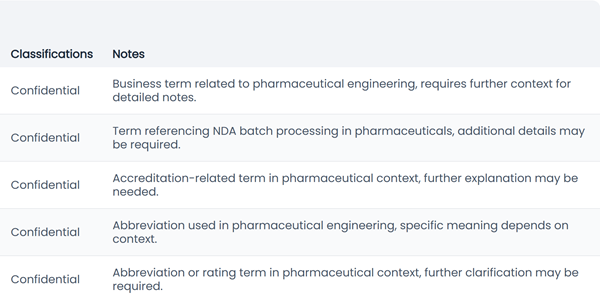
The Assistant prompts: Would you like to generate the classifications, notes for these terms?
Follow the same procedure to accept and moderate classifications and notes, as shown for descriptions in the previous section.
Similarly, you can update other attributes.
-