After mapping source metadata with target metadata, you can run the lineage analyzer in Metadata Manager. You can run forward, reverse, and dual lineage analysis to trace metadata at the system, environment, table, and column level.
Forward lineage analysis generates lineage with the table as source. And reverse lineage analysis generates lineage with the table as target. The Dual lineage analysis generates a lineage, which includes both forward and reverse lineage.
This topic walks you through the steps to run lineage at the table level as an example.
To run lineage at the table level, follow these steps:
- Go to Application Menu > Data Catalog > Metadata Manager.
- In the Data Catalog pane, click the required table.
- In the right pane, click the Data Lineage tab.
By default, dual lineage of the table appears in Graphical View.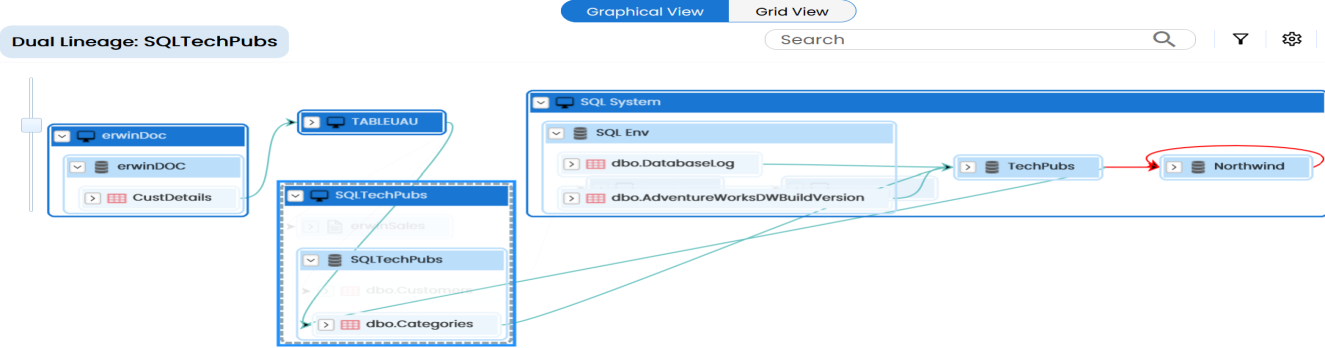
- You can click Graphical View or Grid View to switch between them:
Graphical View: The graphical view displays the lineage of the table in a graphical format. Selecting a table on the graphical view displays its Legends. Hovering over a table displays an
 icon. Clicking this icon opens the object's properties.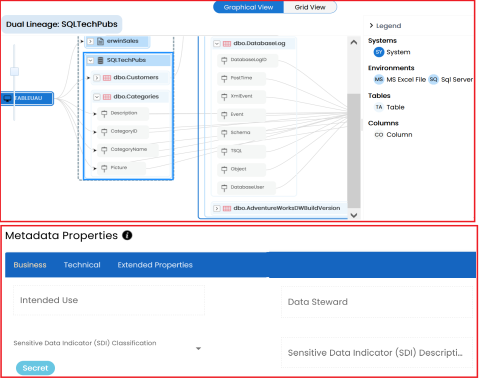
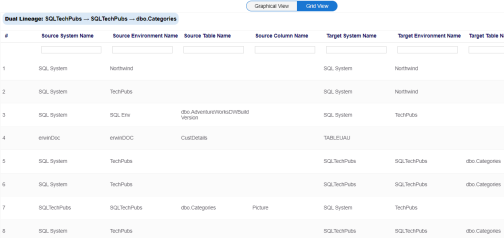
Grid View: The grid view displays the lineage of the table in a tabular format. You can view the source and target system, environment, table and column associated with the selected table.
- Search (
 )
) -
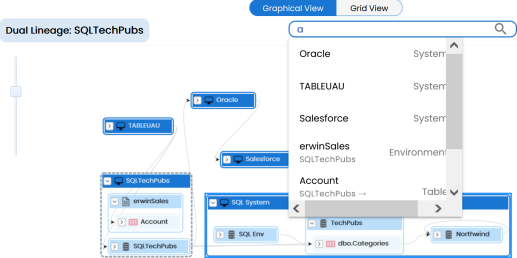
Use this option to search for tables that you want to see on the lineage.
As you type in the search box, a list of related tables that are available on the lineage appears.
-
- Filter Objects (
 )
) -
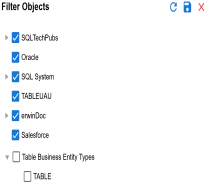
Use this option to filter and display required tables in the lineage view.
-
-
The unselected objects are replaced with black dots on the lineage diagram.
-

- Switch View (
 )
) -
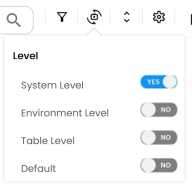
Double-click an object to see Switch View option. Use this option to switch the level of objects displayed and see the system, environment, or table in which the object is located.
-
- Options (
 )
) -
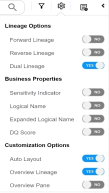
Use this option to view lineage types, business properties and customizations options. For more information on lineage options, refer to the running lineage analysis on Table topic.
-
- Export (
 )
) -
Use this option to export the lineage. Click
 and use the following options:
 -
Image (
 ): Use this option to download the lineage as an image, in the .JPG format. Ensure that you expand the required nodes in a lineage before downloading the lineage as image.
 -
PDF (
 ): Use this option to download the lineage report in the .PDF format. Ensure that you expand the required nodes in a lineage before downloading the lineage report as PDF.
 -
Excel (
 ): Use this option to download the lineage report in the .XLSX format. Ensure that you expand the required nodes in a lineage before downloading the report.
Use the following options to work on the lineage in graphical view:
On the lineage, expand a table node, and select a column to view its lineage path. The column is highlighted in blue color, its forward lineage path appears in red, and its reverse lineage path appears in blue. The assets that are not part of a lineage path disappear.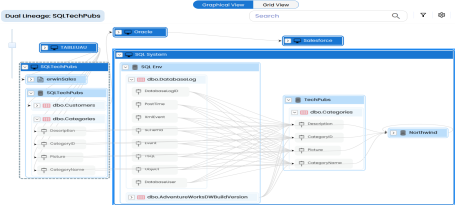
Click a path around the selected object to highlight its path of the source or target in the lineage.
Transformations between columns are indicated using  in the lineage. Hover over to view transformation rules for the columns on a pop-up. Or, click the path between the columns to highlight it to view detailed transformations between them in the Transformation Details pane.
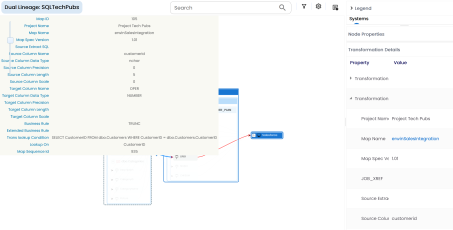
You can expand the transformation node to view the transformation details that includes Business Rule, Extended Business Rule, Trans lookup Condition, Lookup On, and more relevant properties.
You can also run the lineage at the following levels:
- System
- Environment
- Column
For more information on performing lineage analysis in Metadata Manager, refer to the Running Lineage Analysis section.