Data quality scores (DQ scores) enable you to measure your data's quality. A higher DQ score indicates better accuracy and completeness of the data. To provide data quality capabilities, erwin Data Intelligence (erwin DI) integrates erwin Data Quality as a data quality analysis partner. To run data quality profiling, you need to configure erwin Data Quality in your erwin DI application.
Configuring erwin Data Quality in erwin DI requires Client ID and Client Secret details available in your erwin Data Quality instance. To get configuration details, refer to the Accessing erwin Data Quality Configuration Details section.
erwin Data Quality supports Single Sign-On (SSO). For more information, refer to erwin Data Quality SSO guide.
To configure erwin Data Quality, follow these steps:
- Go to Application Menu > Settings > Miscellaneous Configurations.
The Miscellaneous Configuration page appears. - Click the Data Profiling Configuration tab.
The Data Profiling Configuration tab appears.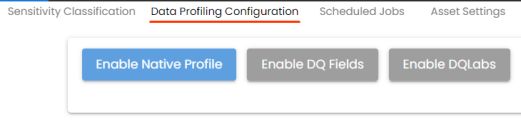
Use the following options for setting up data profiling configuration: - Enable Native Profile: Use this option to enable and configure an erwin Data Quality profile to sync erwin DI and erwin Data Quality and profile data.
- Enable DQ Fields: Use this option to display only the selected data quality parameters across the assets in your organization.
- Enable DQLabs: Use this option to enable erwin Data Quality integration using connection details and schedule a sync job. For more information, refer to the Enabling DQLabs section.
Enabling DQLabs
To enable erwin Data Quality integration, follow these steps:
- On the Data Profiling Configuration tab, click Enable DQLabs.
- Click
 .
.
The DQLabs Configuration tab switches to edit mode and displays connection details. - Enter appropriate values in the fields. Refer to the following table for field descriptions:
- Click
 .
.
The erwin Data Quality configuration is saved.
This configuration requires Client ID and Client Secret from your erwin Data Quality instance. To get configuration details from erwin Data Quality instance, refer to the Accessing erwin Data Quality Configuration Details section.

|
Field Name |
Description |
|---|---|
|
DQ Version |
Specifies the version of Data Quality. For example, 2.x, 3.x. Data Quality version 3.x supports DI version 15.1 and above. |
|
Base URL (Private) |
Specifies the base URL of your erwin Data Quality instance For example, https://cloud.dqlabs.ai |
|
Public URL |
Specifies the public URL of your erwin Data Quality instance For example, https://cloud.dqlabs.ai |
|
Client Id |
Specifies the alphanumeric client ID of your erwin Data Quality instance For example, 2ax1x3xde-b8x8-4b134-aa08-xxx303p2b86f1fk |
|
Client Secret |
Specifies the client secret of your erwin Data Quality instance |
To test the configuration, click  . If the connection with the erwin Data Quality instance is established successfully, then a success message appears.
You can now access erwin Data Quality from erwin DI. To access erwin Data Quality, go to Application Menu > Data Quality.
The next steps involve adding datasets and views in the erwin Data Quality and scheduling a erwin Data Quality job.
Accessing erwin Data Quality Configuration Details
To access Client ID and Client Key in your erwin Data Quality instance, follow these steps:
- Log in to erwin Data Quality.
The erwin Data Quality instance opens. - On the app menu, click
 > Settings.
 - Click
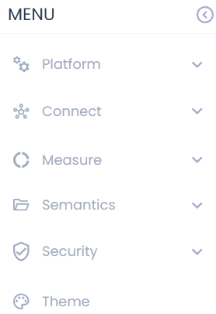
 to expand menu.
 - Expand Security and click API.
- Click
 to copy them.
 - Paste these values into the Enabling DQ Labs section.
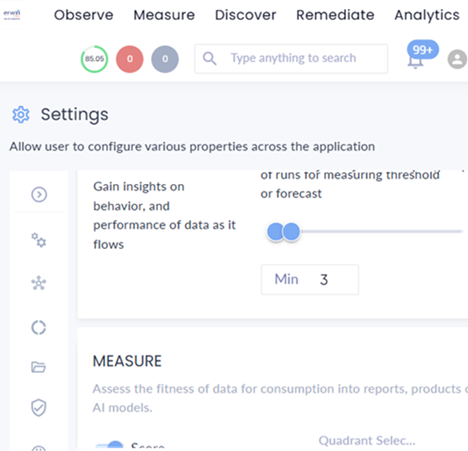
The Settings page appears.
The menu expands and displays additional options.
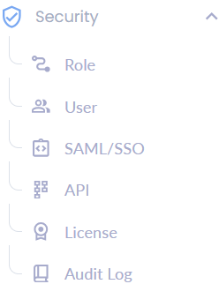
The API section appears and displays the Client ID and Client Key.
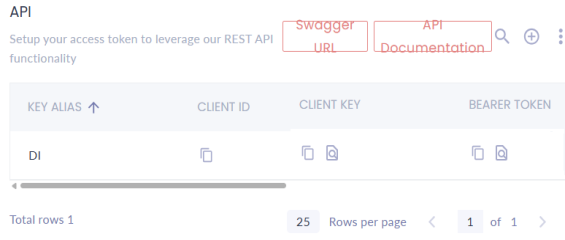
You can also create a new API key to generate a Client ID and Client Key.
To create a new API key, follow these steps:
-
Click
 .
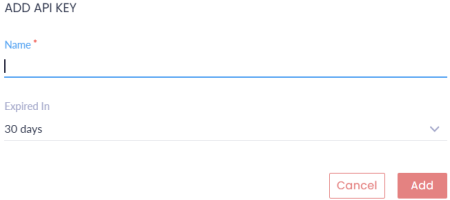
.The ADD API KEY dialog box opens.
-
In the Name field, enter a name for the API key.
-
Select the required option from the Expired In dropdown.
-
Click Add.
A new API key is created, and the Client ID and Client Key are generated.