By default, you can associate datasets with other marketplace assets (insights and AI models), business assets (business policies and other business terms), and technical assets (columns, environments, and tables). You can control the available asset types for association using the Business Glossary Manager & Data Marketplace Settings page. For more information, refer to the configuration topic.
To set up associations, follow these steps:
- On the Compact View tab, click
 .
.
Alternatively, on the Grid View tab, under the Options column, click . Then, click Associations.
The Associations tab opens in edit mode.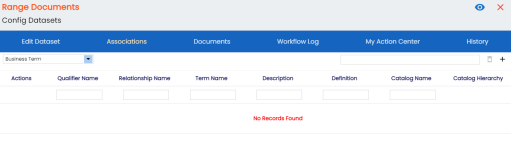
- In the asset type (displays technical, business, and marketplace assets) list, select an asset type to associate with the dataset.
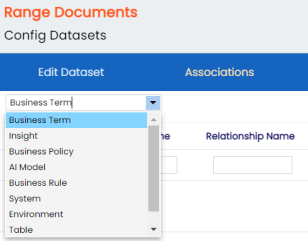
- Click
 .
.
The Relationship Associations page appears. Based on the asset type that you selected, it displays a list of available assets.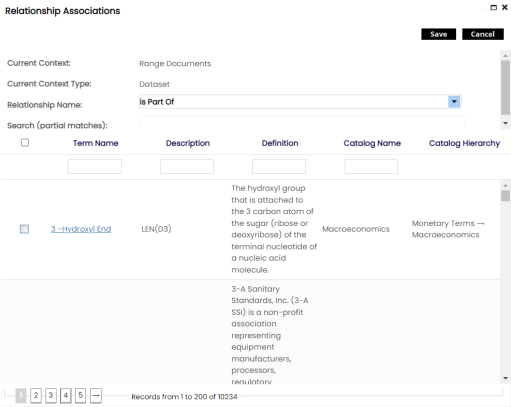
- Select assets to associate with your dataset.
If you know the asset name, use the Search (partial matches) field to look up for it. - Click Save.
The selected assets are associated with the dataset and added to the list of associations.
You can define as many associations as required.
You can associate multiple marketplace assets with other business and technical assets, and view the associations based on a qualifier view in the mind map. For more information, refer to the Setting Up Associations using Qualifiers topic.