Managing Custom Views
Managing custom views involves:
- Modifying views
- Deleting views
To modify custom views, follow these steps:
- On the view card, click
 .
.
The options to manage the view appear.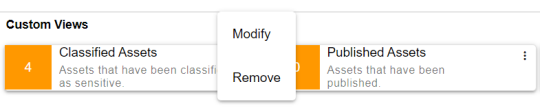
- Click Modify.
The <Business Assets> Views page appears.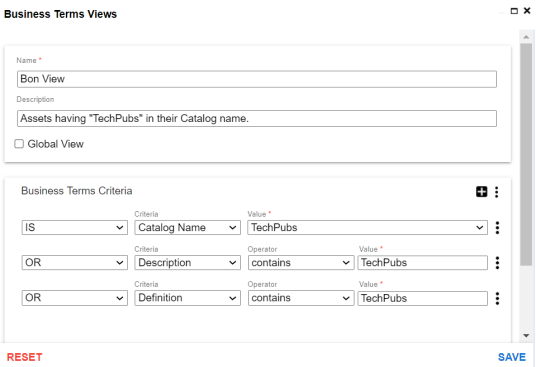
- Modify the required properties (name, description, and global view) of the view. Also, modify the <Asset_Name> Criteria as required.
You can also modify the order of the conditions configured in a criteria set. Click for a criteria and use the following options:- Move up
- Use this option to move criteria up within the business asset set.
- Move down
- Use this option to move criteria down within the business asset set.
- Remove
- Use this option to remove criteria from the business asset set that is no more required.
- Click Save.
Apart from modifying the existing criteria set, you can add multiple criteria sets. To add criteria set, click Add Criteria Set.
The changes made to custom view are saved and the results based on the updated configuration are available on the Custom Views page.