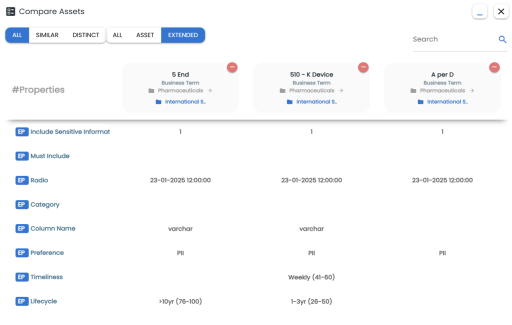
You can compare business assets (business terms, business policies, and more) side by side to gain more insight and see asset property differences. You can also compare them based on similarity or distinct properties and more.
For example, the following steps walk you through comparing business terms. Similarly, you can compare other business assets in Business Glossary Manager.
To compare business assets, follow these steps:
- In the Asset Workspace pane, under the Business Terms node, click the required catalog.
- Select the required assets from the list.
You can select up to five assets for comparison.
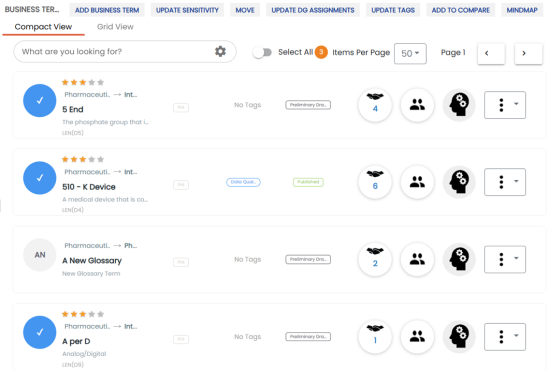
Alternatively, you can also compare assets in the Grid View tab. - Click Add to Compare.
The Asset to Compare sheet appears.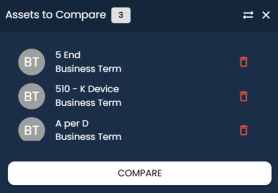
You can click to remove assets from the compare list.
 - Click Compare.
The business terms list appears in the Compact View tab.
The Compare Assets page appears and displays side by side comparison of asset properties for the selected assets.
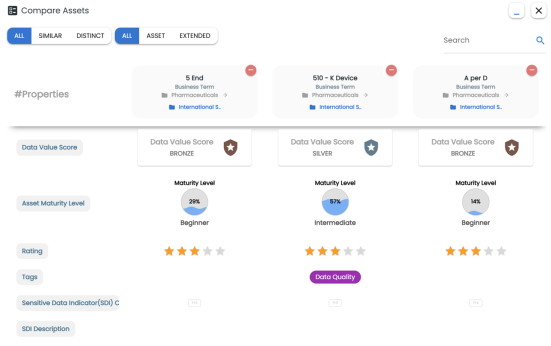
Also, use the Search box to search and compare specific properties of the assets.
Use the following options to compare assets based on similar or distinct properties:
- All
-
Use this option to view all asset properties for comparison.
- Similar
-
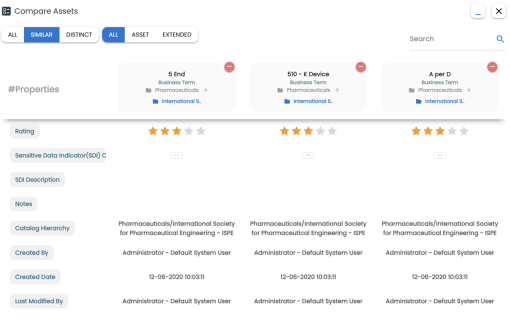
Use this option to view only the asset properties that are similar to the assets in comparison. For example, the following image displays similar properties.
- Distinct
-
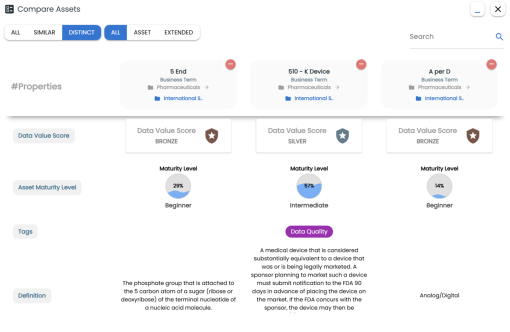
Use this option to view only the asset properties that are different from the assets in comparison. For example, the following image displays the properties that are different between the assets.
-
Use the following options to compare assets based on extended properties and asset details:
- All
-
Use this option to view all asset properties for comparison.
- Asset
-
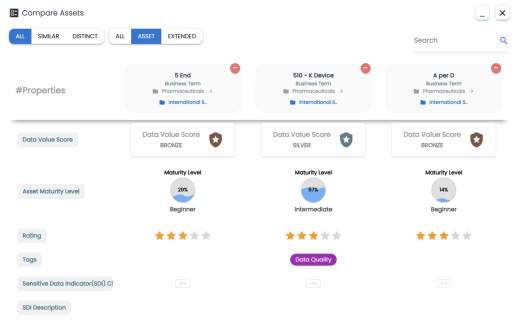
Use this option to view only the asset properties of the assets in comparison. For example, the following image displays all the asset properties.
-
- Extended
-
Use this option to view only the extended properties of the assets. For example, the following image displays the extended properties.