You can add supporting artifacts, such as text files, audio files, video files, and so on to a business policy.
To add rich media to a business policy, follow these steps:
- On the Compact View tab, click
 . Then, click
  .
.Alternatively, on the Grid View tab, under the Options column, click
.The business policy opens in edit mode.
- Click the Rich Media Library tab.
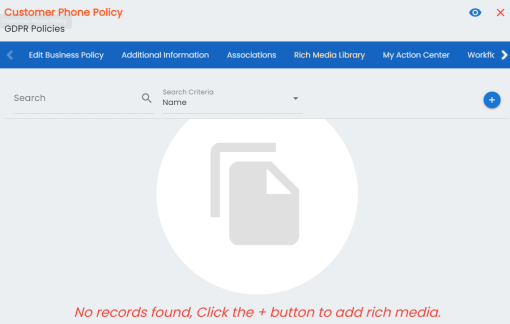
- Click
 .
.
The Add New Rich Media page appears.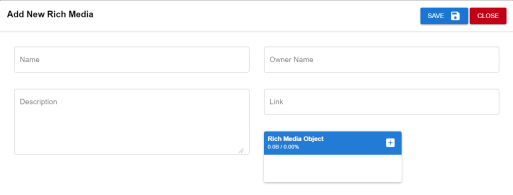
- Enter appropriate values in the fields. Fields marked with a red asterisk are mandatory. Refer to the following table for field descriptions.
Field Name
Description
Name
Specifies the name of the document being attached to the business policy.
For example, Business Policy Details.
Description Specifies a description of the rich media that is being added.
Owner Name Specifies the document owner's name.
For example, John Doe
Link Specifies the URL of the rich media.
For example, https://drive.google.com/file/l/2sC2_SZIyeFKI7OOnb5YkMBq4ptA7jhg5/view
Rich Media Object Click the Pick Files button to choose and upload files from your computer.
- Click Save.
The selected rich media file and its description are added to the business policy.