You can define a validation rule in the form of SQL queries and use it to validate reference tables.
To add validation rules, follow these steps:
- Go to Application Menu > Data Catalog > Reference Data Manager.
- In the Workspace pane, click the Validation Rules node.
- Click
 .
. - Enter appropriate values in the fields. Fields marked with a red asterisk are mandatory. Refer to the following table for field descriptions.
- Click
 .
.
The Validation Rule Grid page appears.
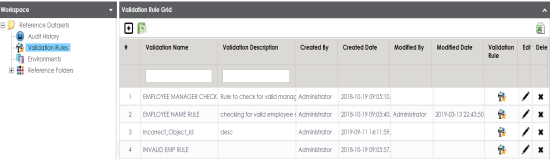
The New Validation Rule page appears.
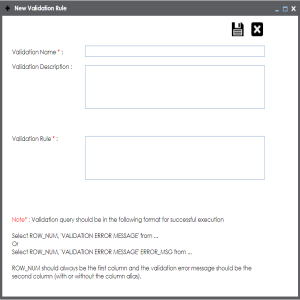
|
Field Name |
Description |
|---|---|
|
Validation Name |
Specifies the name of the validation rule. For example, Incorrect_Object_ID. |
|
Validation Description |
Specifies the description about the validation rule. For example: This validation rule validates the ERWIN_SALES reference table. |
|
Validation Rule |
Specifies the SQL query of the validation rule. For example: select * from ERWIN_SALES where ID = 1000000. |
The validation rule is created and saved in the Validation Rule Grid.
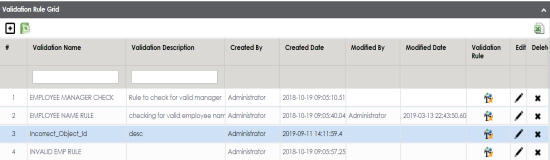
Use the following options to work on the Validation Rule Grid page:
 )
)Use this option to view validation rule queries.
 )
)Use this option to update validation rules.
 )
)Use this option to delete validation rules that are no longer required.
Once a validation rule is added, you can: