Managing users involves:
- Editing or deleting users
- Monitoring user account activities
- Viewing users activity history
Editing or Deleting
To edit or delete users, follow these steps:
- On the Users tab, click a user.
- Use the following options:
- Edit User (
 )
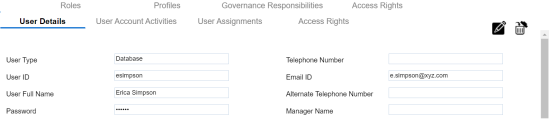
)- Use this option to update user details and assign new roles to the user.
- You cannot edit the User Type, User ID and the Default Role.
- Delete User (
 )
)- Use this option to delete a user that is no longer required.
- Edit User (
By default, the User Details tab opens.
Monitoring User Account Activities
To monitor user account activities, follow these steps:
- In the browser pane, click the Users section.
- Use the following options:
- Enable User
- Use this option to enable locked and disabled users. To enable users, select the required rows in the grid and click Enable User.
- Disable User
- Use this option to disable users. To disable users, select the required rows in the grid and click Disable User.
- Export to Excel
- Use this option to download the user's account activities in the XLS format.
- Notify
- Use this option to send email notifications to users.
- Logout
- Use this option to log out the user.
- If the selected user is logged in then the Logout button appears like Logout[1].
By default, the User Account Activities tab opens. It displays the account activities of all the users.
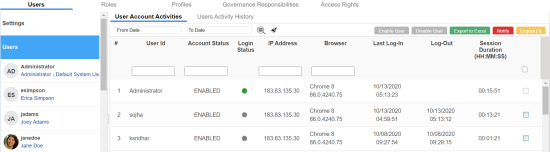
You can filter the content in the grid based on the From Date and To Date. To filter the content, set dates in the From Date and To Date and then click  .
.
To clear the search results, click  .
.
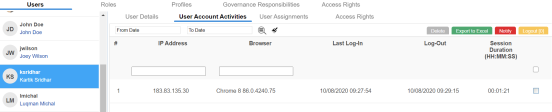
You can monitor account activities of an individual user. To monitor account activities of users individually, on the Users tab, click a user and then click the User Account Activities tab. Refer to the above descriptions for the available options on the User Account Activities tab.
Viewing Users Activity History
To view users activity history, follow these steps:
- In the browser pane, click the Users section.
- Click the Users Activity History tab.
It displays the complete history of users activity.
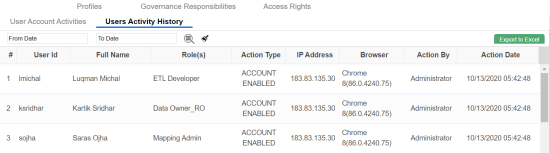
You can filter the content in the grid based on the From Date and To Date. To filter the content, set dates in the From Date and To Date and then click .
To clear the search results, click .