You can associate columns with business assets, systems, environments, tables, and columns. You can also view mind map and association statistics.
Ensure that:
- Business assets are enabled. You can add custom business assets and enable them in Business Glossary Manager Settings.
- Relationship between column and the asset type is defined. You can define associations and relationships in Business Glossary Manager Settings.
To associate columns with asset types, follow these steps:
- In the Data Catalog pane, click the required column.
- In the central pane, click the Associations tab.
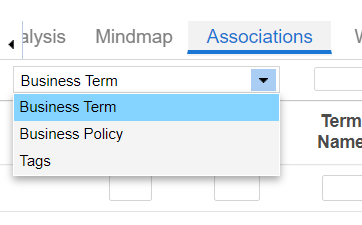
- Select an asset type from the drop down.
- Click
 .
.
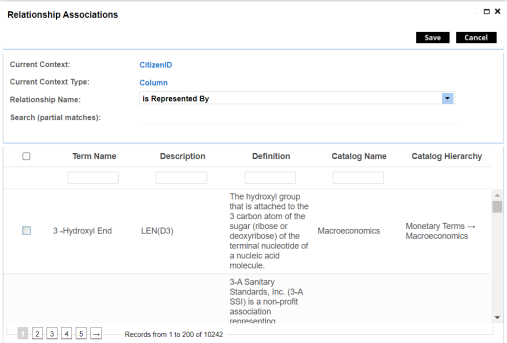
The Relationship Associations page appears. - Select Relationship Name, and asset type.
If you know the term name, use the Search (partial matches) field to look up for it. - Click Save.
The asset is added to the column.
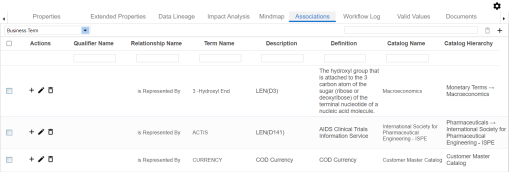
Once you have created associations, you can use the following options under the Actions column:
)Use this option to add associations using a qualifier.
 )
)Use this option to edit the association.
 )
)Use this option to delete the association.
To view mind map, click the Mindmap tab. For more information on mind maps, refer to the Viewing Mind Maps topic.
You can associate multiple assets with column and view the associations based on a qualifier view in the mind map. For more information, refer to the Setting Up Associations Using Qualifiers topic.