You can run end to end lineage analysis at project level and trace the data between any two mapping projects. The end to end lineage report can be drilled down further to trace intermediate stages of data.
To run end to end lineage at project level, follow these steps:
- Go to Application Menu > Data Catalog > Mapping Manager.
- In the Workspace Mappings pane, right-click the required source project.
- Click End to End Lineage.
- Select a target subject or a target project.
- Click
 .
. - Navigate
-
Use
 or
or  to navigate.
 - Expand (
 )
) -
To expand the lineage summary, use
 . The expanded summary shows the intermediate stages of data.
 -
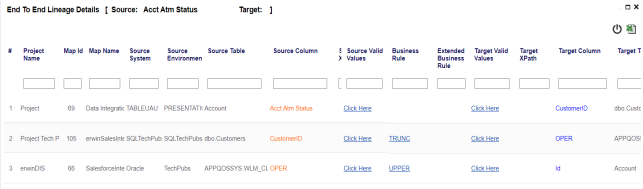
- Reset Column Ordering (
 )
) -
Use this option to reset the column order on the page.
-
Export (
 )
)
-
Use this option to export the lineage summary in the XLSX format.
The available options appear.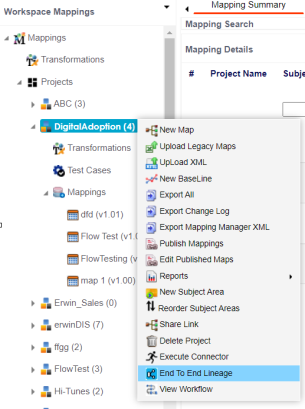
The Select Target page appears.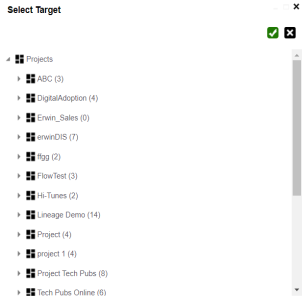
The End to End Lineage Summary page appears. You can drag and arrange column positions on the page for better visibility. 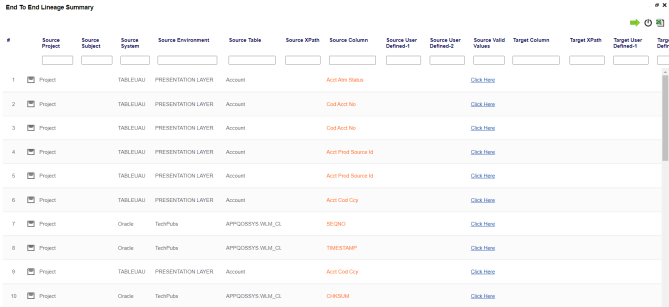
Use the following options to work on the End to End Lineage Summary page: