The mapping specification records are auto synced with the lineage tables as an when they are created or imported by you. You can resync mapping records with the lineage tables in case of any disruption.
To resync mapping records with the lineage tables, follow these steps:
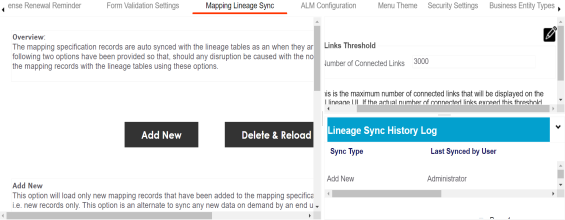
- Go to Application Menu > Settings > Miscellaneous > Mapping Lineage Sync.
- Use the following options:
- Add New
- Use this option to load only new mapping records that have been added to the mapping specification table since the last sync.
- Delete & Reload
- Use this option to reload all the mapping specification information from scratch into the lineage table(s).
- Statistics
- This pane displays the detailed mapping records synced with the lineage tables.
- Sync History Log
- Displays the activity log of the user.
The following page appears.
Links Threshold
Lineage appears in two views, graphical and grid. Under the Links Threshold section, you can set threshold value of connected links such that if number of connected links exceed this value, then lineage is not rendered in the graphical view. You can also control whether Overview Lineage is enabled for lineage reports.
To configure links threshold and overview lineage, follow these steps:
- Under the Links Threshold section, click
 .
. - Use the following options:
- Number of Connected Links
-
Use this option to set the threshold value for connected links such that if number of connected links exceed this value, then lineage is not rendered in the graphical view. By default, this value is set at 3000.
- Overview Lineage
-
Use this option to enable overview lineage for lineage reports.
- Click
 .
.
The links threshold and overview lineage are configured.
|
Copyright © 2022 Quest Software Inc. |