To get you started with using erwin Data Intelligence Suite (DI Suite), this topic walks you through the erwin DI Suite UI, its components, and their functions.
Once you have installed erwin DI Suite, follow these steps to access and use it:
- Start erwin DI Suite.
- Enter your credentials.
- Select the I accept & agree to the terms of the EULA check box.
- Click Sign In.
The Login page appears. It displays your license information at the bottom of the page.
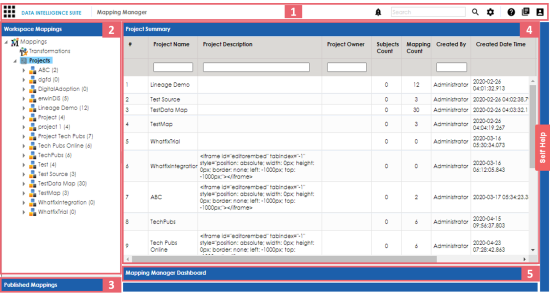
After a successful log in, the following page appears.
By default, the landing module is set to the Mapping Manager. You can change this under your account settings.
|
UI Section |
Function |
|---|---|
|
1-Navigation Pane |
|
|
|
|
|
|
|
|
|
|
|
|
|
|
|
|
|
|
|
|
2-Workspace Mappings | Use this pane to browse and work on different projects and mappings. |
|
3-Published Mappings |
Use this pane to browse through published mappings and export them, if needed. |
|
4-Central Pane |
Based on your selection in the Workspace Mappings pane, use this pane to view or work on the data. |
|
5-Mapping Manager Dashboard |
Use this pane to view statistics related to mappings and projects in the Mapping Manager. |
 Application Menu: Click this icon to access modules of erwin DI Suite.
For more information, refer to the
Application Menu: Click this icon to access modules of erwin DI Suite.
For more information, refer to the  Messaging Center: Click this icon to view notifications and messages.
 Search: Use this feature to search for a keyword based on the module
that you are working in.
Search: Use this feature to search for a keyword based on the module
that you are working in. Search Options: Click this icon to set the search criteria.
 Help: Click this icon to access the context sensitive help.
 Bookshelf: Click this icon to access the erwin DI Suite bookshelf.
 Options: Click this icon to manage your profile options.
Application Menu
To access the Application Menu, click  .
.
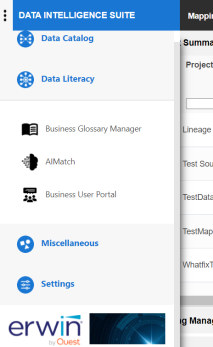
The Application Menu classifies the functional module in different categories. Select a category to view its modules. Refer to the following table for a list of categories and their relevant modules.
|
Category |
Modules |
|---|---|
|
Data Catalog |
|
|
Data Literacy |
|
|
Miscellaneous |
|
|
Settings |
|
|
|
|
Copyright © 2021 erwin, Inc. All rights reserved. Copyright © 2021 Quest Software Inc. All rights reserved. All trademarks, trade names, service marks, and logos referenced herein belong to their respective companies. |