A mind map displays the pictorial representation of a business asset and its association with other business and technical assets. The technical assets refer to systems, environments, tables, and columns. The business assets refer to business terms, business policies, business rules, and other business assets as defined in the Business Glossary Manager Settings.
You can view and analyze Mind Maps in following views:
-
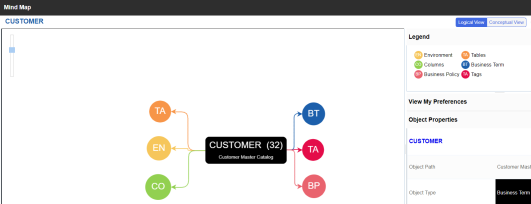
Logical View
-
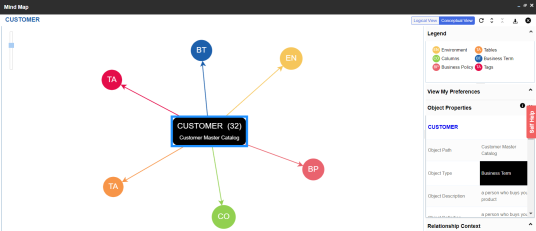
Conceptual View
To view mind maps, follow these steps.
- In the Business Assets pane, click a business asset.
- In the Workspace pane, click a catalog.
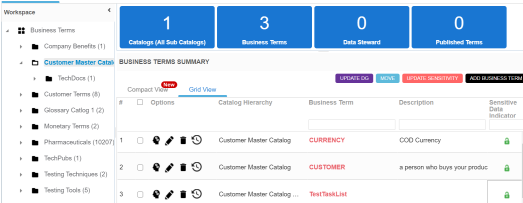
- From the <Business Asset> Summary section, click
 for a business asset.
The Mind Map page appears, and the Logical View opens by default. - From the Mind Map page, you can click Logical View or Conceptual View to switch between them.
For more information on views, see the list below:Logical View
The logical view displays the associated technical assets on the left side and associated business assets on the right of the business asset. Also, select an object on the mind map to view its properties on the right-hand side pane.
Conceptual View
The conceptual view displays the associated technical assets in non-hierarchical representation. Also, view the object properties of a mind map on the right-hand side pane.
- Use the following options to work on the mind map:
- Reload Diagram (
 )
)- Use this option to reload the mind map to its default appearance.
- Expand Diagram (
 )
)- Use this option to expand the mind map to view the associated technical and business assets.
- Reset Diagram to Original View (
 )
)- Use this option to collapse the expanded nodes and restore the mind map to its original form.
- Export (
 )
)- Use this option to export the mind map. Hover over Export and use the following options:
- Mind Map - Excel Report: Use this option to download the mind map in the .xlsx format. Ensure that you expand the mind map before downloading the report.
- Mind Map - Image: Use this option to download the mind map as an image, in .jpg format. Ensure that you expand the mind map before downloading the mind map image.
- Sensitivity Details - Excel Report: Use this option to download the sensitivity report of all associated assets in the .xlsx format. This report includes sensitive data indicator (SDI), SDI classification, and SDI description of the associated assets.
- Reload Diagram (
- Asset Hierarchy
- Use the following options to view asset hierarchy:
- Gray Background:
Use this option to display gray colored background for the asset hierarchy nodes. For example, the following mind map displays nodes in the hierarchy with a gray-colored background.This option is only available for Logical View.
- Show Asset Hierarchy/Show Hierarchy:
Use this option to view hierarchy of all the assets in a mind map.
- Gray Background:
- Association Statistics
- Select the Show Counts check box to view the number of associations for a business asset.
- Relationship Options
- Use the following options to configure relationship options:
- Include Relationships:
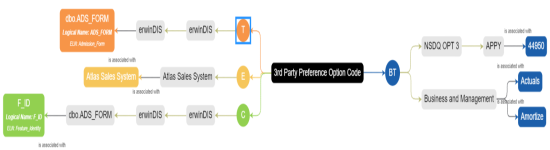
Use this option to display relationships between the assets on the mind map. - Switch to Enterprise Relationship configuration:
Use this option to apply the selected line color and type configured in the Business Glossary Manager Settings.
For example, in the following mind map, the relationship (is associated with) and the line color as set in Business Glossary Manager Settings appear on the mind map.
- Include Relationships:
- View Logical Names
- Use the following options to view logical and expanded logical names of tables and columns on the mind map:
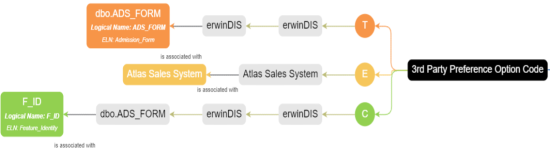
- Logical Names:
Use this option to view the logical names of tables and columns on the mind map. - Expanded Logical Names:
Use this option to view expanded logical names of tables and columns on the mind map.
You can configure logical names and expanded logical names of tables and columns in the Metadata Manager.
For example, the following mind map displays logical names and expanded logical names.
- Logical Names:
- View Sensitivity
- Use the following options to view sensitivity details of the assets for the mind map:
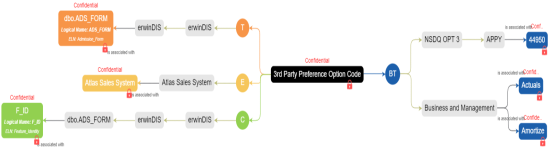
- Sensitivity Data Indicator(Y/N):
Use this option to enable/disable to view the sensitive assets on the mind map. - Sensitive Data Classification:
Use this option to view the sensitive data classification of the assets on the mind map.
For example, the following mind map displays the sensitive data indicator (
 ) for items that are classified sensitive.
For more information on updating the asset's sensitivity in a mind map, refer to the Updating Sensitivity topic.
- Sensitivity Data Indicator(Y/N):
- Filter
- Use the filter options to sort the components of mind map. Expand the Filter pane, and use the following options:
- By Asset Type:
Use this option to filter in the required asset types in the mind map - By Relationship:
Use this option to filter in the required assets in the mind map based on relationship.
For example, if you select only Column for By Asset Type and is associated with for By Relationship, then only associated columns with is associated with relationships shown in the mind map.
- By Asset Type:
-

The Workspace displays a list of catalogs related to the asset. For example, if you select Business Terms in the Business Asset pane, the Workspace switches to the Business Terms Summary view.
You can use the following panes to view and analyze a mind map:
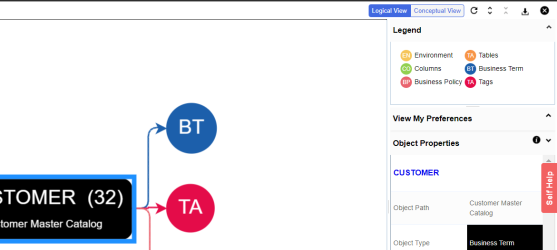
Legend
Use the legends to identify the list of objects on a mind map.
View My Preferences
You can set your preferences to view the mind map according to your requirements. The preferences setting differs based on the logical and conceptual view. Expand the View My Preferences pane on the right-side and use the following options:
Object Properties
Expand this pane to view its association statistics, data governance responsibilities and sensitivity classification of an asset. Asset properties will differ for technical and business assets.
Overview
Expand this pane to open a pan view of the mind map. You can slide the purple box to navigate across the mind map. 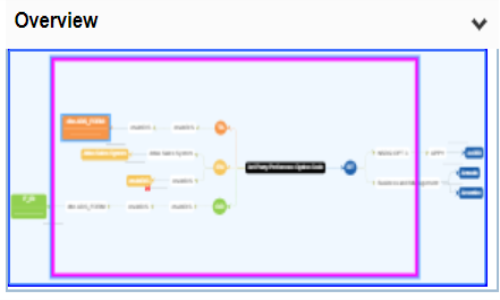
|
Copyright © 2020 erwin, Inc.
All rights reserved.
|
|