You can move business terms from one catalog to another. You can also preserve catalog hierarchy while moving business terms.
To move business terms, follow these steps:
- In the Workspace pane, under the Business Terms node, click the required catalog.
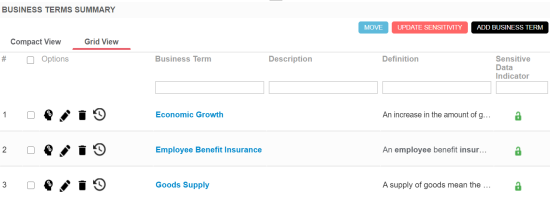
- Click the Grid View tab.
- Select the required rows or use the check box at top to select all the rows.
- Click Move.
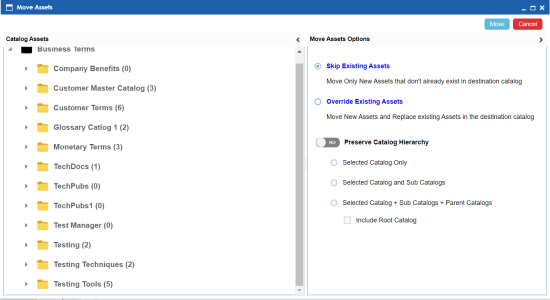
- In the Catalog Assets pane, select a destination catalog.
- In the Move Assets Options pane, use the following options:
- Skip Existing Assets
- Use this option to skip existing assets and move new business terms in the destination catalog.
- Override Existing Assets
- Use this option to replace any existing business terms in the destination catalog.
- Preserve Catalog Hierarchy
- Switch Preserve Catalog Hierarchy to Yes to enable options for preserving catalog hierarchy.
- Selected Catalog only: Use this option to move only the selected source catalog under the destination catalog.
- Selected Catalog and Sub Catalogs: Use this option to move the source catalog and its sub-catalogs under the destination catalog.
- Selected Catalog + Sub Catalogs + Parent Catalogs: Use this option to move the source catalog, its sub-catalogs, and its parent catalogs under the destination catalog.
- Include Root Catalog: This option is enabled only when you select the Selected Catalog + Sub Catalogs + Parent Catalogs option. Use this option to move the root catalog of the source catalog under the destination catalog.
- Click Move.
The business term is moved to the selected catalog.
By default, the Compact View tab appears.

The list of business terms in the catalog appears.
The Move Assets page appears.
|
Copyright © 2020 erwin, Inc.
All rights reserved.
|
|